
You finish a 45-minute meeting, close your laptop, and realize you still have another job to do.
Someone needs the meeting notes. Three decisions were made, but nobody wrote them down properly. A colleague promised to send something by Friday, although you’re not completely sure what it was.
The recording is sitting on your computer.
You could listen to the whole thing again, pause every few minutes, and type up the important parts.
Or you could ask ChatGPT to help.
On October 6, 2026, OpenAI introduced audio uploads in ChatGPT(upload audio to ChatGPT), allowing eligible users to attach existing recordings and work with their contents directly in a conversation.
That means you can upload an MP3 from an interview, an M4A voice note, or a recording of a lecture and ask ChatGPT to produce a transcript, summarize the discussion, or identify important details.
The feature sounds straightforward, and in many cases it is.
But there are a few things worth knowing before you upload your first recording, including supported file formats, the 512 MB limit, paid-plan availability, transcription mistakes, and privacy.
Here’s how it works, what you can realistically do with it, and how to get better results.
Can you upload audio files to ChatGPT?
Yes. ChatGPT supports direct audio-file uploads on eligible paid plans and workspaces.
According to OpenAI’s October 6, 2026 ChatGPT release notes, users can attach supported audio recordings and ask ChatGPT to create transcripts, summarize what was said, or answer questions about the recording.
You can also use the recording to produce other useful outputs, such as a meeting follow-up email or a structured list of action items.
This is different from typing out a transcript yourself.
It’s also different from starting a live conversation with ChatGPT using your microphone.
You’re giving ChatGPT an audio file that already exists.
For example, you might upload:
- A recorded team meeting.
- A voice memo containing ideas for a new project.
- An interview with a customer or guest.
- A university lecture you were permitted to record.
- A podcast episode you want to study.
- A spoken project briefing from a colleague.
The result depends on the quality of the recording and what you ask ChatGPT to do.
A clean, clearly spoken recording will generally be easier to process than one with several people talking over each other in a noisy room.
And even when the transcript looks convincing, it can still contain errors.
How to upload audio to ChatGPT: Step-by-step
You don’t need to convert every recording into a written transcript before getting started.
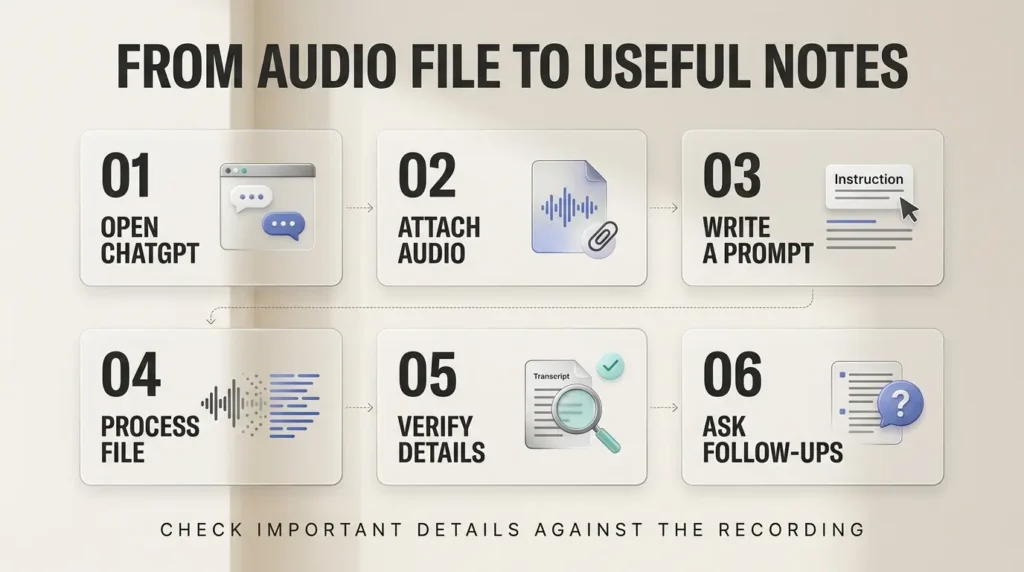
Here’s the basic workflow.
Step 1: Open ChatGPT
Go to ChatGPT and sign in to an account with access to audio uploads.
Open a new conversation.
If you’re using a managed workplace account, your administrator may control which upload capabilities are available.
Step 2: Attach your audio file
Find the attachment or add-file control beside the message box.
Choose the recording you want to upload.
For example, you might select:
team-meeting-october-2026.mp3
Or:
lecture-week-04.m4a
ChatGPT’s audio-upload support includes common formats such as MP3, WAV, M4A, AAC, FLAC, and OGG.
We’ll cover the complete format list below.
If your file is stored in an unsupported format, convert it to a supported audio format first.
Step 3: Tell ChatGPT what you need
Uploading the file is only the first part.
You also need to explain what you want to get from it.
For a basic transcript, try:
Transcribe this audio recording as accurately as possible. Preserve the original meaning, identify speakers only when you can distinguish them reliably, and mark unclear words instead of guessing. Do not add information that isn’t in the recording.
For meeting notes, try:
Summarize this meeting in clear, professional language. Separate confirmed decisions, action items, open questions, and topics that need follow-up. Do not invent owners or deadlines.
Step 4: Wait for processing
ChatGPT will process the recording and generate a response.
Processing time can vary with file size, recording length, audio quality, model, and system conditions.
Very long recordings may take longer or fail to complete.
OpenAI says longer recordings can sometimes be processed in smaller sections when Data Analysis is available, but that process is best-effort rather than guaranteed.
Step 5: Review the transcript or summary
This is the step people are most likely to skip.
Don’t assume every name, date, figure, or speaker label is correct.
Compare important details with the original recording.
Pay particular attention to:
- Names of people and organizations.
- Prices and financial amounts.
- Dates and deadlines.
- Technical terminology.
- Statements made by different speakers.
- Decisions that could affect other people.
If something is unclear, ask ChatGPT to identify uncertainty rather than make a confident guess.
Step 6: Ask follow-up questions
Once ChatGPT has processed the audio, you can continue working with it in the same conversation.
For example:
“What did the client say about the proposed deadline?”
“List every question that remained unanswered.”
“Draft a polite follow-up email based only on the decisions confirmed in the recording.”
“Turn the lecture into a study guide with key terms and practice questions.”
You don’t have to start from scratch every time.
Which audio formats does ChatGPT support?
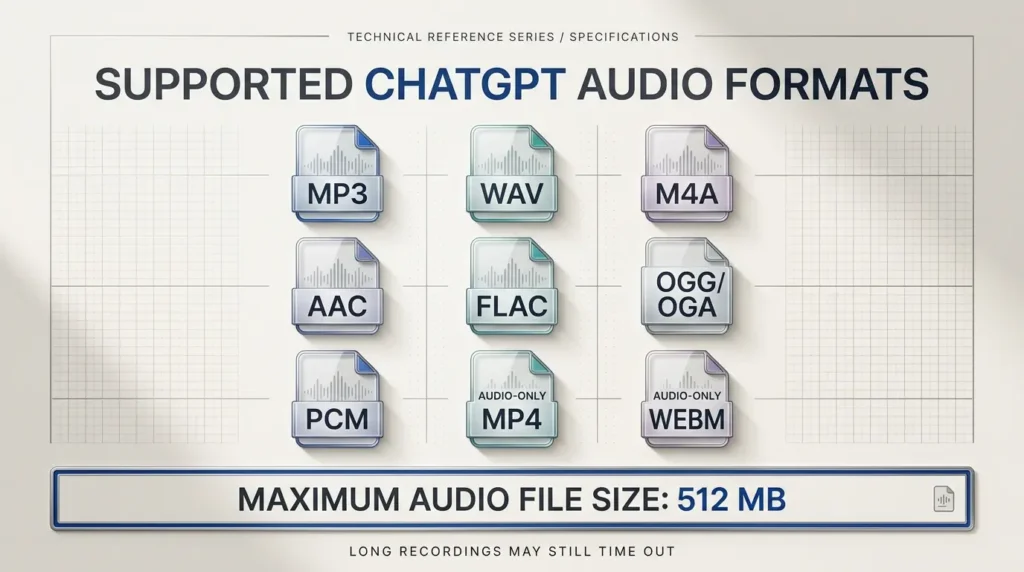
OpenAI’s official file and audio upload documentation lists the following supported formats.
| Format | Common use |
|---|---|
| MP3 / MPEG | Meetings, podcasts, general recordings |
| WAV | High-quality or uncompressed recordings |
| M4A | Phone voice memos and audio recordings |
| AAC | Compressed digital audio |
| FLAC | Lossless audio archives |
| OGG / OGA | Open audio containers |
| PCM | Raw audio data |
| Audio-only MP4 | Audio stored in an MP4 container |
| Audio-only WebM | Audio stored in a WebM container |
The file must contain a valid audio stream that ChatGPT can decode.
There’s an important distinction for MP4 and WebM files.
An MP4 or WebM file identified as video is not supported through the audio-upload feature.
If you have a video recording, you may need to extract the audio into a supported format before uploading it.
Renaming meeting.mp4 to meeting.mp3 doesn’t convert the audio.
A proper conversion tool must create a valid audio file.
What is the maximum audio file size?
OpenAI documents a 512 MB maximum audio-file size.
That is a file-size limit, not a promise that every recording under 512 MB will process successfully.
A very long recording may still time out.
The recording’s duration, encoding, complexity, and processing requirements can all matter.
If you have a particularly long recording, splitting it into logical sections may make the workflow easier to manage.
For example:
interview-part-01.mp3
interview-part-02.mp3
interview-part-03.mp3
You can process each section separately, then ask ChatGPT to combine the verified notes into one organized document.
Seven useful prompts for uploaded audio
The quality of your instructions matters almost as much as the quality of the recording.
A vague prompt such as “Summarize this” may produce a reasonable overview.
But it may not give you the structure you actually need.
Here are seven more useful prompts.
Prompt 1: Create an accurate transcript
Transcribe this recording as accurately as possible. Preserve the language and meaning of the speakers. Add punctuation and paragraph breaks for readability. Do not invent missing words. Mark uncertain passages as [unclear]. Identify speakers only when the audio provides enough evidence.
Best for: interviews, meetings, lectures, and voice memos.
This is a good starting point when you need a written record before doing anything else.
Prompt 2: Turn a meeting into structured notes
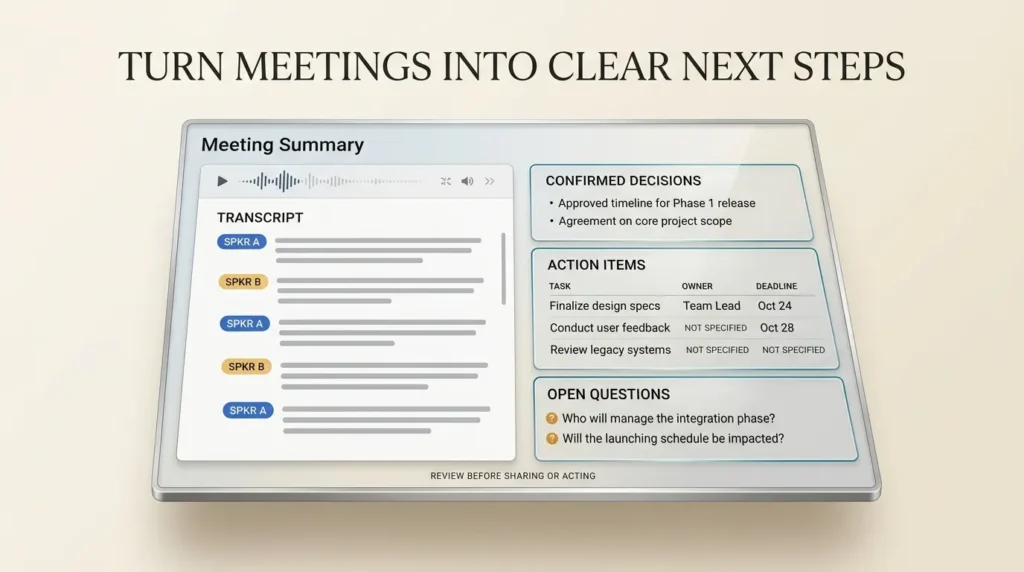
Review this meeting recording and produce professional meeting notes with these sections: meeting purpose, topics discussed, confirmed decisions, action items, unresolved questions, and next steps. Distinguish what was explicitly agreed from what was merely suggested. Do not invent deadlines or responsibilities.
Best for: internal meetings, project discussions, and client calls.
This prompt is particularly useful because it separates decisions from general conversation.
Prompt 3: Extract action items
Identify every action item mentioned in this recording. Create a table with task, responsible person, deadline, and supporting evidence from the transcript. If a person or deadline was not explicitly stated, write “Not specified.” Do not assign responsibilities based on assumptions.
Best for: project management and team follow-ups.
The instruction about missing information is important.
An AI system should not quietly turn an unclear suggestion into a commitment.
Prompt 4: Create a lecture study guide
Turn this lecture into a structured study guide. Include the main concepts, key definitions, examples explained by the lecturer, and 10 practice questions with answers. Separate information directly stated in the lecture from any additional explanation you provide.
Best for: students and independent learners.
You can then ask ChatGPT to explain a specific section in simpler language.
For factual or technical subjects, compare important explanations against course materials.
Prompt 5: Analyze a customer interview
Analyze this customer interview and identify recurring problems, desired outcomes, objections, and product suggestions. Include short supporting excerpts from the transcript. Separate direct customer statements from your interpretation. Do not invent quotations or claim a theme is widespread based on one interview.
Best for: product research, customer discovery, and service improvement.
This approach is more useful than asking for a generic summary.
It helps preserve the difference between what a customer actually said and what you think it means.
Prompt 6: Turn a voice note into a polished draft
This recording contains my spoken ideas for an article. Organize them into a clear outline, preserve my original point of view, identify gaps that need research, and suggest a natural opening. Do not introduce unsupported facts or make the writing sound overly promotional.
Best for: writers, founders, marketers, and creators.
Speaking ideas aloud can be easier than staring at a blank document.
ChatGPT can help turn those ideas into a workable structure.
For a more complete content-production process, see TrendOutsider’s generative AI workflows guide.
Prompt 7: Draft a follow-up email
Based on this meeting recording, draft a concise, professional follow-up email. Thank the participants, summarize only the decisions that were confirmed, list agreed next steps, and politely ask for clarification on unresolved items. Do not invent commitments, prices, or deadlines.
Best for: client meetings, sales conversations, and partnership discussions.
Always review the email before sending it.
A transcription mistake can become a business problem if it turns into a written promise.
How to turn a meeting recording into action items
Let’s walk through a realistic example.
Imagine a small marketing team has just finished a weekly campaign meeting.
During the discussion, someone mentions that the landing page needs revisions.
Another person says the new creative assets should be ready by Thursday.
The team also discusses increasing the advertising budget, but no final decision is made.
If you simply ask ChatGPT to summarize the meeting, it may combine these points into a short paragraph.
That might be readable, but it isn’t necessarily actionable.
A better approach is to ask for three separate outputs.
First: Confirmed decisions
Ask ChatGPT to identify decisions that were clearly agreed upon.
In this example, the team may have confirmed that the landing page needs revisions.
Second: Assigned work
Ask it to identify the person responsible for each task and the deadline, if one was actually stated.
If the recording doesn’t clearly establish who owns the landing page revisions, the output should say so.
Third: Open questions
Ask ChatGPT to list unresolved issues.
The proposed advertising-budget increase belongs here if nobody approved it.
This distinction is small but important.
A good meeting summary should not turn a discussion into a decision.
Example output structure
| Item | Status | Owner | Deadline |
|---|---|---|---|
| Revise landing page | Action discussed | Not specified | Not specified |
| Prepare creative assets | Expected deliverable | Not specified | Thursday, if confirmed in recording |
| Increase advertising budget | Decision pending | Not specified | Not specified |
This is a fictional illustration, not the result of an actual uploaded meeting.
Once you’ve verified the notes, you can ask ChatGPT to draft a follow-up email or prepare a project checklist.
How students can use ChatGPT for lecture recordings
A recorded lecture can be useful, but replaying an entire class isn’t always the most efficient way to revise.
Audio uploads can help students find the sections that matter.
For example, after uploading a permitted recording, you could ask ChatGPT to:
- Create a chapter-style summary.
- Explain unfamiliar terminology.
- List the lecturer’s main arguments.
- Generate practice questions.
- Identify topics that need further reading.
- Turn the material into flashcards.
The biggest benefit may be organization.
Instead of searching through an hour-long recording for one explanation, you can work from a structured set of notes.
However, the transcript may miss a technical term or misunderstand a sentence.
This is especially important in mathematics, medicine, law, and other subjects where a single word can change the meaning.
Also remember that a lecture may refer to slides, diagrams, or whiteboard work that isn’t present in the audio.
ChatGPT cannot reliably reconstruct unseen visual material from the recording alone.
If those materials are available and you have permission to use them, attach the relevant documents separately.
ChatGPT audio uploads vs Voice vs Record vs Meetings
These features sound similar, but they solve different problems.
| Feature | What it’s for |
|---|---|
| Audio uploads | Analyze a recording you already have |
| ChatGPT Voice | Have a spoken conversation with ChatGPT |
| ChatGPT Record | Capture and summarize audio during a recording session |
| Meetings plugin | Take meeting notes and work with follow-up actions in supported desktop environments |
| Voice dictation | Convert a spoken message into text before sending it |
Audio uploads: Work with an existing file
This is the focus of this guide.
You attach a recording and ask ChatGPT to process it.
It’s useful when the audio already exists on your computer or phone.
ChatGPT Voice: Talk to ChatGPT
Voice is designed for spoken interaction.
You speak to ChatGPT and receive a conversational response.
It is not the same workflow as uploading a saved MP3 for analysis.
OpenAI explains the current Voice experience in its ChatGPT Voice documentation.

ChatGPT Record: Capture a session
Record mode is intended for capturing and summarizing meetings, brainstorming sessions, and voice notes.
OpenAI’s ChatGPT Record guide describes its supported desktop environment, permissions, and recording controls.
Availability differs from ordinary audio uploads.
Meetings plugin: Dedicated meeting notes
OpenAI also offers a separate Meetings plugin in supported desktop environments.
It can create personalized meeting summaries and suggested action items.
It has its own plan, platform, and workspace requirements.
The Meetings plugin should not be confused with uploading an existing audio file.
Voice dictation: Speak a message
Dictation turns a spoken message into text that you can edit and send.
It’s useful for entering a prompt without typing.
It’s not designed as a substitute for processing a long saved meeting recording.
Is ChatGPT audio upload free?
As of the official documentation reviewed on October 10, 2026, direct audio-file uploads are available with paid ChatGPT subscriptions and eligible workspaces, not the Free plan.
That is different from ordinary document or image uploads, which have their own plan-specific availability and limits.
Audio-upload access can also depend on your selected model, client version, region, and workspace settings.
If you’re using ChatGPT through an employer or school, the workspace administrator may control access.
Do you need a separate transcription subscription?
OpenAI describes audio uploads as a capability available through eligible paid ChatGPT plans.
Its documentation does not establish a separate universal per-minute transcription price for this ChatGPT feature.
That doesn’t mean usage is unlimited.
Plan limits, upload limits, and product availability can still apply.
For current access rules, consult OpenAI’s official audio-upload documentation rather than assuming that a feature shown in someone else’s account is available in yours.
Why ChatGPT audio transcription can make mistakes
Speech recognition is useful, but it’s not perfect.
Consider a recording with three people speaking quickly.
One person uses an unfamiliar company name.
Another mentions a price while someone else interrupts.
A third speaker joins from a noisy location.
Even a strong transcription system can struggle with those conditions.
Names and technical terms
Unusual names, acronyms, and specialized terminology may be transcribed incorrectly.
Multiple speakers
Speaker labels may be unreliable, particularly when voices overlap or sound similar.
Accents and languages
OpenAI warns that performance can vary across languages.
Poor recording quality
Background noise, low microphone volume, and distorted audio can reduce accuracy.
Missing context
Audio may not capture what participants were pointing at or showing on a screen.
Confident summaries of uncertain details
This is one of the more serious risks.
An uncertain transcript can produce a confident-looking summary.
That’s why it’s useful to ask ChatGPT to flag uncertainty explicitly.
For important recordings, review the source audio before relying on the output.
What if ChatGPT won’t upload your audio file?
If the upload fails, start with the simplest checks.
1. Confirm your plan supports audio uploads
The feature isn’t currently available on the Free plan.
If you’re using a workplace account, check whether your administrator has restricted it.
2. Check the file size
Audio uploads have a documented 512 MB maximum.
If your file exceeds that limit, consider converting it to a more compact supported format or splitting the recording.
3. Check the file format
Use a supported audio format such as MP3, M4A, or WAV.
A file extension alone isn’t enough.
The file must contain valid, decodable audio.
4. Make sure it isn’t actually a video file
Audio-only MP4 and WebM files are supported.
Files identified as video are not supported through the audio-upload feature.
5. Check upload limits
OpenAI notes that upload-rate and storage limits can affect file uploads.
Failed attempts may sometimes count toward an upload-rate limit.
6. Try a shorter recording
If a long recording times out, process smaller sections.
Keep the sections in order so you can combine the notes accurately.
7. Check for service issues
Visit OpenAI Status if uploads that normally work suddenly fail.
If the problem continues, OpenAI recommends contacting support with details such as the time, platform, error message, and request ID when available.
Is it safe to upload private recordings to ChatGPT?
This deserves attention before you upload a client call, medical discussion, employee interview, or confidential meeting.
First, make sure you have the right to record and process the conversation.
Recording laws and consent requirements vary by location.
Even where a recording is legally permitted, your organization may have additional confidentiality or data-handling policies.
Second, understand that uploading a recording sends information to an online service for processing.
Don’t assume every recording is appropriate to upload.
Third, review your ChatGPT privacy settings and workspace rules.
OpenAI’s Data Controls documentation explains how eligible users can manage whether new conversations are used to improve models.
For managed business workspaces, OpenAI says customer content is not used to train models by default.
Retention also matters.
OpenAI’s chat and file retention documentation explains that files saved to Library may remain separately from the conversation.
Deleting a chat does not necessarily delete a file that remains saved in Library.
For sensitive recordings, review both the chat and any separately saved file.
A sensible privacy checklist
Before uploading a recording, ask yourself:
- Did everyone who needed to consent agree to the recording and its use?
- Does the file contain confidential or regulated information?
- Does my employer or client permit this processing?
- Do I need to remove names, account numbers, or other sensitive details?
- Do I understand my account’s retention and data controls?
If the answers aren’t clear, resolve them before uploading.
Can ChatGPT turn a recording into a complete workflow?
It can help with several stages of a workflow.
For example:
Recording → Transcript → Summary → Action Items → Email Draft
That’s useful for a consultant who wants to turn a client meeting into a clear follow-up.
A content creator might use:
Voice Note → Outline → Article Draft → Editorial Review
A student might use:
Lecture Recording → Study Notes → Practice Questions → Revision Plan
The important distinction is that generating these outputs doesn’t automatically mean ChatGPT has completed every real-world action.
Drafting a follow-up email isn’t the same as sending it.
Identifying a task isn’t the same as assigning it in a project-management system.
For a deeper explanation of systems that coordinate actions across tools, see TrendOutsider’s AI agents workflow automation guide.
And if you’re comparing different ways AI can save time in everyday work, our AI productivity tools guide offers a broader starting point.
Frequently asked questions
Can I upload an MP3 to ChatGPT?
Yes. MP3/MPEG is among the supported audio formats for eligible accounts.
Can ChatGPT transcribe an audio recording?
Yes. You can upload a supported recording and request a transcript.
Can ChatGPT summarize a meeting recording?
Yes. It can produce meeting summaries, action items, and follow-up drafts from supported uploaded audio.
What is the maximum audio upload size?
OpenAI documents a 512 MB maximum audio-file size.
Can I upload an M4A voice memo?
Yes. M4A is supported.
Does ChatGPT support WAV and FLAC?
Yes. Both formats appear in OpenAI’s supported audio-format list.
Can ChatGPT process an MP4 recording?
Audio-only MP4 files are supported. MP4 files identified as video are not supported through audio uploads.
Is audio upload available on ChatGPT Free?
No. As of the October 10, 2026 documentation reviewed for this article, audio uploads are available on eligible paid plans and workspaces, not Free.
Can ChatGPT identify different speakers?
It may distinguish speakers, but OpenAI warns that speaker identification can be unreliable. Verify important attributions.
Can ChatGPT transcribe languages other than English?
Audio understanding and transcription performance vary by language. Review the transcript carefully, especially for less common languages or mixed-language recordings.
Can ChatGPT transcribe a two-hour meeting?
It may be possible if the file is supported and processing succeeds. However, long recordings can time out, and the 512 MB limit does not guarantee successful processing.
Can ChatGPT create meeting minutes?
Yes. Ask for a structured summary with confirmed decisions, action items, unresolved questions, and next steps.
Can I ask questions about an uploaded recording?
Yes. You can ask follow-up questions about the recording’s contents within the conversation.
Is ChatGPT Record the same as uploading audio?
No. Record captures audio during a session. Audio uploads let you analyze a recording that already exists.
Will ChatGPT automatically send follow-up emails?
Not merely because you uploaded audio. It can draft an email; sending it requires a separate supported workflow and appropriate authorization.
Does deleting a ChatGPT conversation delete its uploaded audio file?
Not necessarily. A file saved separately in Library may remain there until you delete that saved copy or the applicable retention policy removes it.
Final verdict: The real value isn’t the transcript
Uploading audio to ChatGPT is useful because it can reduce the work that comes after a recording.
A transcript is a starting point.
The more valuable result may be the decisions you can find, the tasks you can organize, or the ideas you can turn into something useful.
For students, that might mean a better revision guide.
For professionals, it might mean clearer meeting notes.
For creators, it might mean turning a spontaneous voice memo into a structured draft.
But none of those benefits removes the need for judgment.
Important details still need checking. Private recordings still require care. And an AI-generated summary should never quietly become the official version of a conversation without review.
Use ChatGPT to make recordings easier to work with—not to replace your responsibility for what was actually said.
That’s where the feature is most useful.
Sources and editorial methodology
This guide is based on OpenAI’s official product announcements and help documentation reviewed on October 10, 2026. It does not claim independent testing of every supported file type, language, plan, or client.
Seven authoritative external references:
- OpenAI — ChatGPT release notes
- OpenAI — Uploading files and audio to ChatGPT
- OpenAI — ChatGPT Voice
- OpenAI — ChatGPT Record
- OpenAI — The Meetings plugin in ChatGPT
- OpenAI — Data controls in ChatGPT
- OpenAI — Chat and file retention in ChatGPT
Editorial disclosure: Examples and sample prompts are illustrative. No measured transcription accuracy, time-saving percentage, or guaranteed processing time is claimed. Recheck plan access, upload limits, and supported formats immediately before the scheduled October 26 publication.







Leave a Reply