

You ask ChatGPT to compare three laptops.
It gives you a detailed answer. There are specifications, prices, advantages, disadvantages, and a recommendation somewhere near the bottom.
The information might be useful, but there’s still a problem.
You have to keep scrolling up and down to remember which laptop has the better battery, which one costs less, and whether the most expensive option is actually worth it.
Now imagine getting the same answer as a comparison you can explore, with the options arranged side by side.
Or imagine asking how a savings account grows over time and receiving a calculator where you can change the monthly contribution yourself.
That’s the idea behind ChatGPT Intelligent UI, a new capability introduced with GPT-6 in October 2026.
Instead of treating every question as something that needs a written answer, ChatGPT can now create visual and interactive responses when they make more sense.
It’s an interesting change. But it’s also easy to overestimate what it means.
You aren’t suddenly getting a fully developed software application every time you type a prompt. And a beautiful interactive answer isn’t automatically more accurate than an ordinary paragraph.
So what can Intelligent UI actually do, who can use it, and how do you get something useful out of it?
Let’s look at seven practical examples you can try.
What is ChatGPT Intelligent UI?
ChatGPT Intelligent UI is a capability that allows GPT-6 to combine written answers with visual layouts and interactive elements inside a conversation.
OpenAI introduced it on October 7, 2026, in its official announcement, GPT-6 and Intelligent UI for everyone.
Depending on the question, ChatGPT may use comparison cards, charts, graphics, buttons, forms, diagrams, or small interactive tools.
The important difference is that these elements aren’t necessarily separate applications you need to install.
They can appear as part of the answer itself.
For example, ask ChatGPT to explain a difficult mathematical concept and it might show a diagram you can explore.
Ask it to split a restaurant bill and it may provide an interactive calculator.
Ask for a comparison and it may organize the options into a more useful visual format.
Sometimes it will still answer with plain text.
That’s intentional.
A short question doesn’t need an elaborate interface just because the technology can produce one.
Why this matters
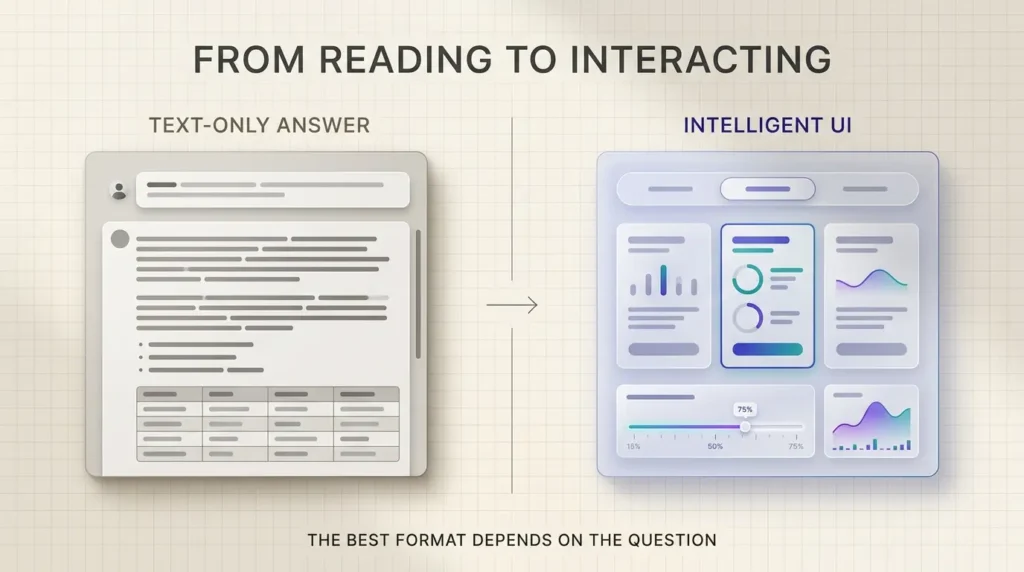
For years, most chatbot conversations have followed the same basic pattern.
You type a question. The AI responds with text. You read it, ask a follow-up, and repeat.
That works well for many tasks.
But some questions are easier to answer visually.
A chart can make a trend obvious.
A diagram can help explain a complicated process.
A calculator can let you explore several possibilities without asking the same question repeatedly.
Intelligent UI gives ChatGPT more freedom to choose how to present an answer.
The goal isn’t to replace writing.
It’s to make the format fit the problem.
What changed with GPT-6 on October 7, 2026?
OpenAI’s October 7 announcement introduced Intelligent UI as part of a broader GPT-6 update to ChatGPT.
The company described three main directions.
First, answers can become more visual, helping users compare choices or follow plans.
Second, difficult topics can become more interactive, allowing people to explore concepts rather than only read explanations.
Third, ChatGPT can create small tools for specific tasks directly in the conversation.
OpenAI also announced that GPT-6 can begin responding while it continues thinking or using tools.
That means a response may appear progressively instead of requiring the user to wait for every part to be completed before anything becomes visible.
According to the official ChatGPT release notes, Intelligent UI is supported in the GPT-6 Chat experience from Instant through Extra High reasoning, where those options are available.
The separate Pro reasoning option powered by GPT-6 Astra does not support Intelligent UI.
We’ll cover plan availability in more detail below.
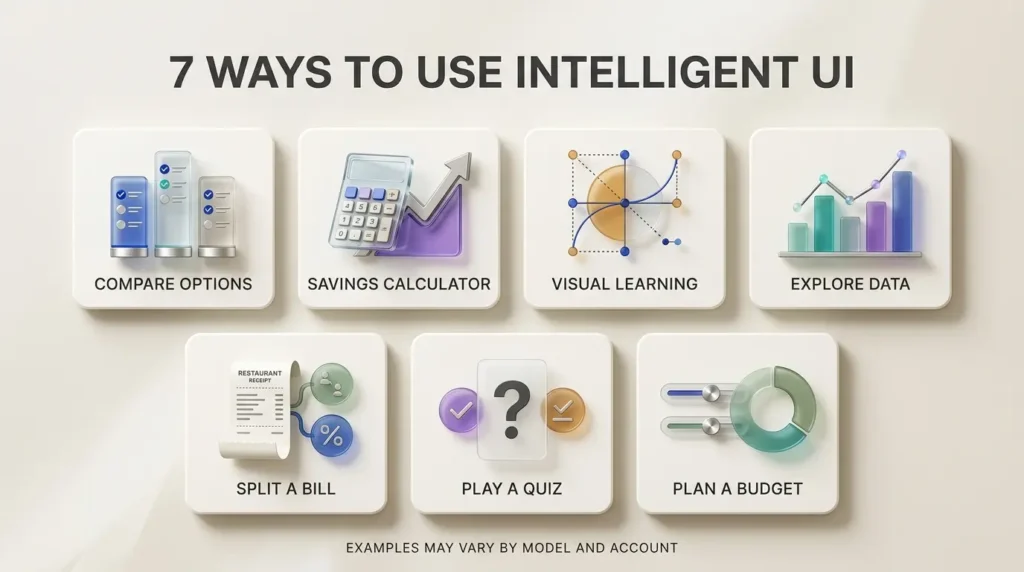
7 things you can do with ChatGPT Intelligent UI
These examples are designed to be practical rather than flashy.
Each includes a prompt you can copy into ChatGPT.
The exact interface may vary. ChatGPT can choose a different format depending on the model, your account, the device you’re using, and the task.
1. Compare products or services side by side
Let’s start with a familiar problem.
You’re choosing between three products.
Maybe they’re laptops. Maybe they’re project-management tools, phone plans, or online courses.
You ask ChatGPT which one is best.
A traditional answer might list the advantages and disadvantages in separate paragraphs.
An interactive comparison can make the differences easier to scan.
You could compare features, prices, limitations, and suitability for different needs.
Try this prompt:
Compare three laptops for a university student with a budget of $900. Show the differences in a clear, interactive side-by-side comparison. Include battery life, weight, performance, repairability, and major trade-offs. Ask me about my country before recommending specific models or prices.
Why this is useful:
The comparison keeps important criteria together instead of scattering them across a long answer.
You can also ask ChatGPT to prioritize different requirements.
For example, battery life might matter more than gaming performance.
Important limitation: Product specifications, prices, and availability can change. Ask for current sources and verify important details before buying.
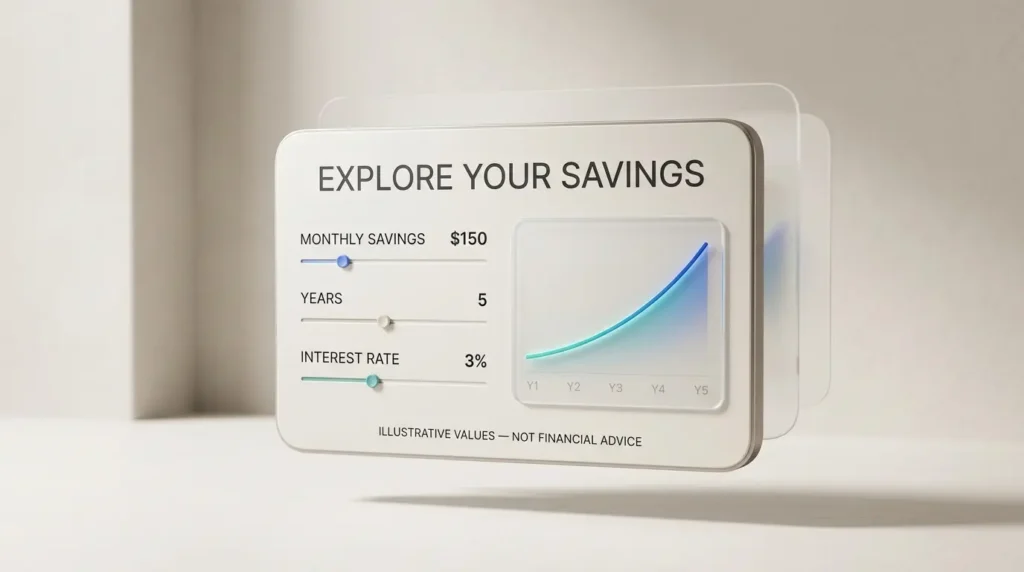
2. Create a savings calculator
Suppose you’re trying to save for a new laptop, a vacation, or an emergency fund.
You know how much you can save each month, but you want to explore different scenarios.
How long will it take if you save $100 per month?
What if you save $150?
What happens if your starting balance changes?
A calculator is more convenient than asking for a fresh calculation every time.
Try this prompt:
Create an interactive savings calculator. Let me change my starting balance, monthly contribution, annual interest rate, and number of years. Show the estimated ending balance and a simple chart. Explain the assumptions and distinguish my contributions from estimated interest.
The useful part isn’t just getting a final number.
It’s being able to change the assumptions.
You can see how a small adjustment affects the result.
This is similar to one of the calculator examples OpenAI highlighted in its announcement.
Important limitation: Financial projections depend on assumptions. Interest rates, taxes, fees, and real-world returns may differ. Use the tool for planning, not as a guaranteed forecast.
3. Learn a difficult concept with a visual explanation
Imagine you’re studying probability.
You’ve watched a video, read your notes, and still don’t understand why a particular answer is correct.
Another long explanation might not help.
Sometimes you need to see the concept.
OpenAI’s Intelligent UI announcement includes examples involving mathematical and economic ideas, such as the central limit theorem and the Monty Hall problem.
These subjects are well suited to visual exploration because changing an input can make the underlying principle easier to understand.
Try this prompt:
Explain the Monty Hall problem to a complete beginner. Use an interactive three-door example if available. Let me choose a door, reveal a losing option, and decide whether to switch. After several rounds, explain the probability behind the result in simple language.
This kind of interaction can turn an abstract explanation into something more memorable.
You aren’t simply reading that switching is usually better.
You’re exploring the conditions that make it true.
For structured learning, ChatGPT also offers a separate Study mode, which can guide you through questions and check your understanding.
Study mode and Intelligent UI are related learning experiences, but they aren’t the same feature.
4. Explore numbers through charts
Let’s say you manage a small online store.
You have six months of sales data in a spreadsheet.
You want to know whether sales are improving, which month performed best, and whether the trend is consistent.
ChatGPT can help organize and visualize the information.
A chart may be easier to interpret than a paragraph describing each month.
Try this prompt:
Create an interactive chart using this example monthly revenue data: January $4,000, February $4,500, March $4,200, April $5,100, May $5,600, and June $6,000. Show the monthly trend and calculate month-over-month changes. Let me switch between a bar chart and a line chart if supported. Label the data as illustrative, not real business results.
Notice that the prompt includes actual numbers.
That’s deliberate.
A good chart should be grounded in data, not invented to look impressive.
If you’re working with real business figures, upload the correct dataset and ask ChatGPT to identify missing or inconsistent values before drawing conclusions.
An interactive chart can make exploration easier.
It doesn’t remove the need to check the calculations.
5. Split a restaurant bill without doing the math yourself
You’ve had dinner with four friends.
The bill includes several dishes, shared appetizers, tax, and a tip.
Two people ordered expensive meals. Someone else only had a drink.
Splitting everything equally wouldn’t be fair.
This is a good example of a small task where an interactive tool can be genuinely useful.
Try this prompt:
Make an interactive restaurant bill splitter for five people. Let me enter each person’s food and drink costs, add shared items, set tax and tip percentages, and calculate what each person owes. Show the total so I can verify that everyone’s shares add up to the final bill.
This is one of the kinds of everyday tools OpenAI specifically demonstrated when announcing Intelligent UI.
You don’t need to install a dedicated bill-splitting app for every one-off situation.
And you can adjust the values while everyone checks the result.
Just make sure the total matches the receipt.
6. Create a small quiz or interactive game
Not every useful AI interaction has to be about work.
Sometimes the best way to learn something is to make it playful.
Imagine helping a child practice geography or testing yourself on the vocabulary of a new language.
A static list of questions can work.
But a small interactive quiz may be more engaging.
Try this prompt:
Create a 10-question interactive geography quiz for a beginner. Show one question at a time with four answer choices. Keep score, explain incorrect answers briefly, and show a final summary of the topics I should review.
You could adapt the same idea for spelling, science, history, or professional training.
OpenAI’s announcement also included an example of a simple game created within a conversation.
That doesn’t mean ChatGPT replaces a professional game-development platform.
It means some small experiences can be generated quickly when the goal is practice or entertainment.
7. Build a simple planning tool with adjustable inputs
Here’s an example that could be useful for a freelancer or small-business owner.
You have a limited marketing budget.
You want to divide it between content creation, paid advertising, design, and software.
You could ask ChatGPT to suggest a budget once.
But what happens when the total budget changes?
An interactive planning tool can let you adjust the numbers and see the allocation immediately.
Try this prompt:
Build an interactive monthly marketing budget planner for a small business. Start with a total budget of $1,000. Let me change the total and adjust the percentage allocated to paid ads, content, design, and software. Make sure the percentages add up to 100%, show the dollar amounts, and flag any unallocated budget.
This is useful because it combines a simple calculation with an interface that supports decision-making.
You can explore different options without rewriting the entire prompt.
The result should still be treated as a planning aid.
It doesn’t tell you which advertising channel will produce the best return.
For that, you need actual performance data and business context.
How to use ChatGPT Intelligent UI
You don’t necessarily need to activate a special feature or install a separate application.
OpenAI describes Intelligent UI as part of the GPT-6 Chat experience.
Here’s a practical way to get started.
Step 1: Open ChatGPT
Visit ChatGPT or use a supported ChatGPT app.
Sign in to your account.
Step 2: Use a supported GPT-6 Chat model
If your account has access to GPT-6, select it in the model menu where applicable.
Available model choices depend on your plan and rollout status.
The separate GPT-6 Pro reasoning option powered by Astra is not the Intelligent UI experience.
Step 3: Ask for an outcome, not just an explanation
Instead of asking:
“How do I calculate savings?”
Try:
“Create an interactive calculator where I can change my monthly savings and see the results.”
The second prompt makes the desired format clearer.
Step 4: Describe the controls you need
If you want to change inputs, say so.
For example:
“Include sliders for the amount and duration.”
Or:
“Let me choose between three options.”
Or:
“Show one quiz question at a time.”
You don’t need to write code.
You do need to explain what would make the result useful.
Step 5: Check the information
Before trusting an interactive result, inspect the assumptions.
Does the calculator use the correct formula?
Are the chart values accurate?
Are the product prices current?
Does the quiz mark answers correctly?
An interface can make a result easier to use, but it cannot guarantee the underlying information is correct.
Intelligent UI vs traditional ChatGPT answers
The difference is mostly about presentation and interaction.
| Traditional answer | Intelligent UI answer |
|---|---|
| Mostly written explanation | Text combined with visual elements |
| May describe a calculation | May provide an adjustable calculator |
| May list options in paragraphs | May show side-by-side comparisons |
| May explain a concept step by step | May include an interactive diagram |
| Follow-up questions often change inputs | On-screen controls may change inputs directly |
| Best for straightforward written tasks | Best when visual exploration adds value |
Neither format is always better.
If you ask for a professional email, a well-written draft may be exactly what you need.
If you ask how compound interest changes over time, an adjustable calculator may be more useful.
The strongest version of Intelligent UI isn’t the one with the most buttons.
It’s the one that makes the task easier.
Is ChatGPT Intelligent UI free?
OpenAI announced a global rollout beginning October 7, 2026.
The initial rollout covered Plus, Pro, Business, and Enterprise.
Free and Go began receiving access starting October 8.
That means Intelligent UI is not positioned as an exclusively paid feature.
However, rollout timing, supported clients, model availability, and usage limits can vary.
For the most current information, check OpenAI’s GPT-6 model guidance.
Which GPT-6 models support Intelligent UI?
OpenAI’s release notes identify GPT-6 Sol as the model used for eligible paid Chat experiences and GPT-6 Luna for Free and Go.
Intelligent UI is available with supported GPT-6 Chat settings from Instant through Extra High reasoning.
The separate Pro reasoning option, powered by GPT-6 Astra, does not support Intelligent UI.
That distinction is easy to miss.
A more powerful model in one area doesn’t necessarily include every presentation feature available in another ChatGPT mode.
What about Enterprise users?
Enterprise access depends on administrator settings and workplace permissions.
An organization may restrict which models employees can use.
OpenAI’s Enterprise release notes confirm that GPT-6 Intelligent UI availability in Enterprise Chat is subject to the workspace’s model-access controls.
Does Intelligent UI work in ChatGPT Work or Codex?
The October 7 Intelligent UI update applies to the Chat experience.
OpenAI says the models powering Work and Codex did not change as part of that release.
These products have their own capabilities and workflows, so it would be inaccurate to assume the Intelligent UI launch changed all of them simultaneously.
Can ChatGPT Intelligent UI replace normal apps?
For some small tasks, it might reduce the need to open a separate tool.
A one-off bill splitter is a good example.
So is a simple savings calculator or a short educational quiz.
But that doesn’t mean Intelligent UI replaces specialized software.
A business accounting system needs reliable records, permissions, integrations, audit trails, and compliance processes.
A professional analytics platform needs dependable data connections and reporting controls.
A full learning platform needs curriculum management, student records, and assessment systems.
An interactive answer inside ChatGPT isn’t automatically a substitute for those things.
It’s better to think of Intelligent UI as a way to create useful, task-specific experiences quickly.
Sometimes that may be all you need.
Other times, it’s a convenient starting point before moving to a dedicated application.
Is Intelligent UI the same as an AI agent?
No.
This is another distinction worth understanding.
An interactive interface lets you work with information.
An AI agent is generally designed to pursue an objective through multiple steps, sometimes using tools and taking actions.
A calculator with adjustable inputs is not automatically an autonomous agent.
A comparison card doesn’t become an agent just because it has buttons.
If you’re interested in the difference, TrendOutsider’s AI agents workflow automation guide explains how agents coordinate tasks and tools.
And if you’re building repeatable business processes rather than one-off interactive tools, our generative AI workflows guide covers the broader workflow perspective.
What are the limitations of ChatGPT Intelligent UI?
The new experience is promising, but there are reasons to remain careful.
1. It may not create the interface you expect
ChatGPT chooses how to respond based on the question and its available capabilities.
Asking for a calculator doesn’t guarantee the exact design or controls you imagined.
You may need to clarify the prompt.
2. Visual presentation doesn’t guarantee accuracy
A beautifully designed chart can still contain incorrect numbers.
A calculator can still use the wrong assumptions.
A comparison can still rely on outdated product information.
The interface should help you inspect an answer, not discourage you from questioning it.
3. Some interactions may be limited
A small tool generated inside a conversation isn’t necessarily a fully featured standalone application.
It may not support every export, integration, or customization option you need.
4. Availability depends on the account and client
Rollouts can take time.
Workplace administrators may restrict access.
Some models or modes may not support Intelligent UI.
5. Privacy still matters
If you’re using ChatGPT to work with business or personal information, consider what you enter.
For sensitive tasks, review your organization’s policies and ChatGPT’s data controls.
The fact that an interface looks like a private application doesn’t change the importance of data handling.
6. Interactive design can become distracting
More controls don’t always mean a better answer.
Sometimes a clean paragraph or simple table is easier to understand.
A useful interface should reduce effort, not create another thing you have to learn.
Who will benefit most from Intelligent UI?
Students and learners
Interactive diagrams, quizzes, and adjustable examples can help explain difficult ideas.
They can be particularly useful when a learner understands the words but struggles to visualize the concept.
Professionals
Comparisons, charts, and quick calculators can help with everyday decisions.
A manager might explore a budget scenario.
A consultant might compare options for a client.
A freelancer might estimate project costs.
Small-business owners
Simple planning tools can be useful when a business doesn’t need an expensive software platform for every decision.
But the calculations still need to be checked against real costs and results.
Families and everyday users
Bill splitting, meal planning, travel comparisons, and educational games are all examples of tasks where an interactive format may be more convenient than a long answer.
The key is choosing a task that actually benefits from interaction.
For a broader look at choosing AI tools based on usefulness rather than hype, see TrendOutsider’s AI and productivity tools guide.

How to write better prompts for Intelligent UI
You don’t need complicated prompt-engineering language.
Start by describing what you want to accomplish.
Then explain how you’d like to interact with the result.
A useful prompt often includes four things:
The goal: What are you trying to decide, calculate, or learn?
The inputs: What information should the tool use?
The interaction: What should you be able to change or select?
The output: What should the result show?
For example:
“Help me plan a monthly household budget. My income is $3,000. Create an interactive planner where I can change spending categories, see how much remains, and receive a warning if my total expenses exceed my income. Don’t invent expenses I haven’t provided.”
That’s more useful than simply typing:
“Make me a budget.”
You can also ask ChatGPT to explain the assumptions behind the interface.
For important calculations, request a worked example so you can verify the logic.
Frequently asked questions
What is ChatGPT Intelligent UI?
ChatGPT Intelligent UI is a GPT-6 capability that allows ChatGPT to combine text with visual and interactive elements such as charts, diagrams, comparison layouts, buttons, and small tools.
When did Intelligent UI launch?
OpenAI announced it on October 7, 2026, with a rollout beginning that day for eligible paid plans and expanding to Free and Go starting October 8.
Is ChatGPT Intelligent UI available for free?
Yes, OpenAI announced a rollout to Free users. Actual access may depend on rollout status, client support, model availability, and usage limits.
Do I need to install Intelligent UI?
No separate installation is generally required. It is part of the supported GPT-6 Chat experience.
How do I make ChatGPT create an interactive tool?
Describe the task and explicitly request the controls you want, such as adjustable inputs, buttons, charts, or a calculator.
Can Intelligent UI make charts?
Yes. OpenAI identifies charts and visual explanations among the supported response formats.
Can it create calculators?
Yes. OpenAI demonstrated calculator-style experiences, including savings calculations and bill splitting.
Can it create games?
OpenAI includes simple games among the interactive experiences ChatGPT can create within a conversation.
Does Intelligent UI work with GPT-6 Astra?
The separate Pro reasoning option powered by GPT-6 Astra does not support Intelligent UI, according to OpenAI’s October 7 release notes.
Is Intelligent UI available on mobile?
OpenAI describes the feature as designed for web and mobile experiences, although availability and supported interactions can vary by client and rollout.
Does Intelligent UI always appear automatically?
No. ChatGPT may choose a normal written response when that format is more appropriate.
Can I trust an interactive calculator created by ChatGPT?
You should verify important calculations and assumptions, particularly for financial, medical, legal, or business decisions.
Is Intelligent UI an AI agent?
Not necessarily. Intelligent UI describes how an answer is presented and interacted with. AI agents involve a different set of capabilities related to carrying out tasks.
Final verdict: The future of ChatGPT may be less about reading answers
For a long time, using an AI chatbot has meant reading what it writes.
That isn’t a bad experience.
But it isn’t always the best one.
Some problems are easier to understand when you can see the relationships.
Some decisions become clearer when you can compare choices.
And some everyday tasks are more convenient when you can adjust a number yourself instead of asking another question.
ChatGPT Intelligent UI moves in that direction.
It’s still early, and the feature has limitations. A polished interface doesn’t guarantee accurate information, and not every task needs an interactive tool.
But the underlying idea is compelling.
Instead of making every question fit the same chat format, ChatGPT can increasingly adapt the format to what you’re trying to do.
For everyday users, that could make AI feel less like a search box that talks back—and more like a tool built around the problem in front of them.
Sources and editorial methodology
This article is based on OpenAI’s official product announcements and help documentation available during research on October 10, 2026. The seven prompts are suggested demonstrations, not a claim that TrendOutsider independently tested every interface or verified identical results across plans and devices.
Seven authoritative external references:
- OpenAI — GPT-6 and Intelligent UI for everyone
- OpenAI Help — ChatGPT release notes
- OpenAI Help — GPT-6 and other models in ChatGPT
- OpenAI Help — ChatGPT Enterprise and Edu release notes
- OpenAI Help — Using study mode in ChatGPT
- OpenAI Help — Data Controls FAQ
- OpenAI — Introducing GPT-6 Sol and Luna
Editorial note: Product access, model names, limits, and supported interfaces may change. Verify the current release notes immediately before publication on October 24.








Leave a Reply