
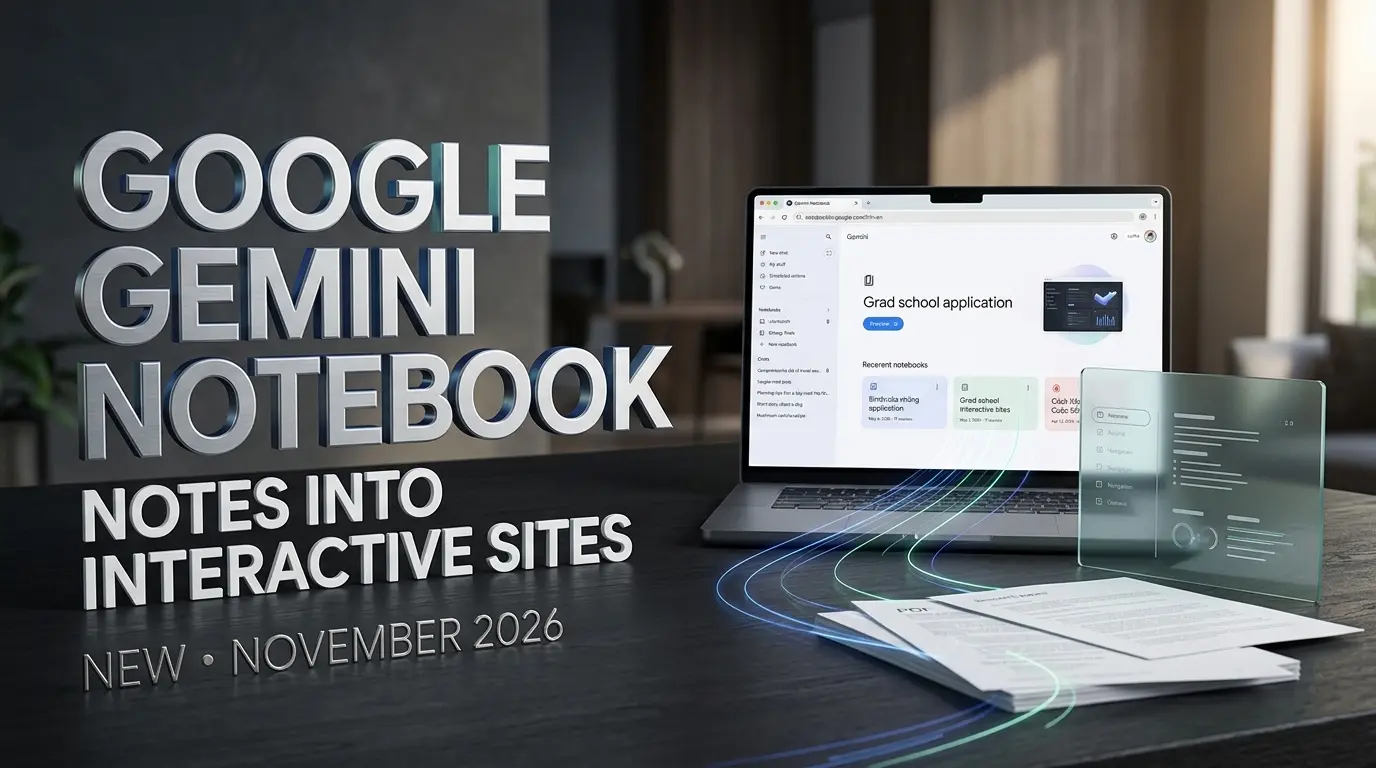
A PDF is useful until you need to find something inside it for the fifth time. A spreadsheet might contain an entire quarter of sales figures, but the people reading it may still struggle to see what changed. And a collection of research notes can be valuable without being particularly easy to explore.
Google has a new idea for what to do with all that information.
On November 16, 2026, the company announced that Gemini Notebook can turn its sources into interactive websites. Instead of stopping at a summary, the research assistant can create an explainer you click through, a dashboard you explore or a project tracker you interact with.
The instruction can be as simple as “make me a site.”
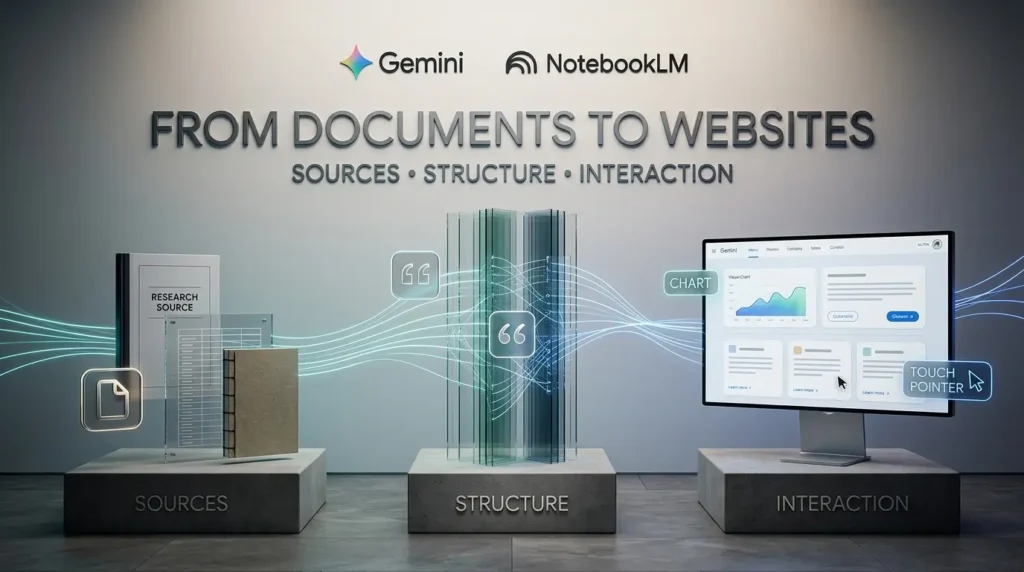
It sounds like a conventional AI website builder. But there is an important difference: Gemini Notebook begins with the information already collected in your notebook.
That makes the feature potentially useful for people who want to understand complex material, present research or explore a dataset without manually designing an entire interface.
It also introduces a question that matters just as much as the convenience: if a site is created from your documents, what happens when you share it?
Google has published instructions for generating, opening, sharing and downloading sites. Those instructions reveal some useful capabilities, along with privacy considerations and limitations that a quick promotional demonstration might not make obvious.
Here’s what Google has released, how to try it and what the new feature can realistically do.
What Did Google Announce on November 16?
Google’s new capability lets Gemini Notebook generate interactive sites based on the material stored inside a notebook.
In its official announcement, Google names three particularly useful examples.
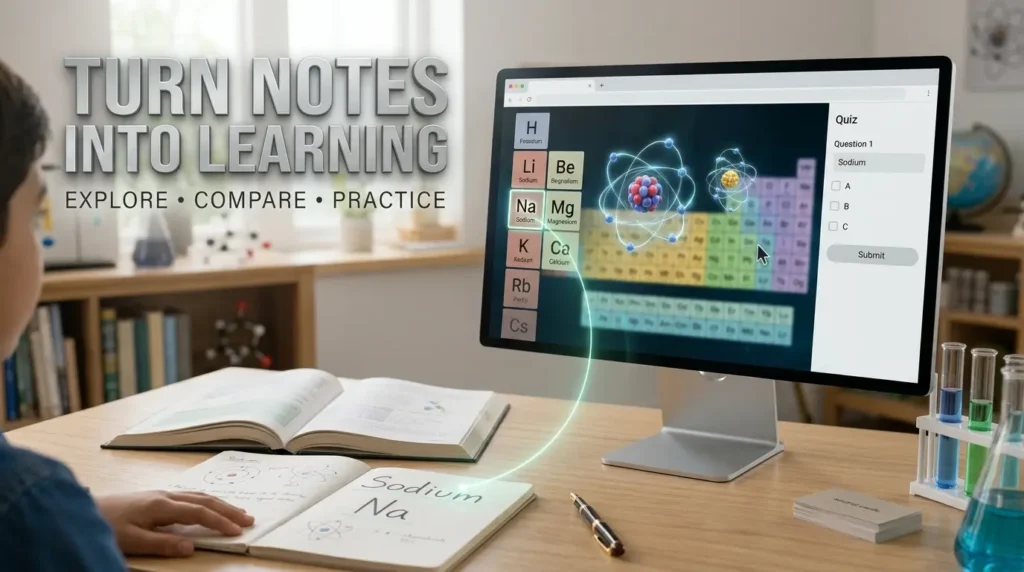
Students can create visual explanations, such as a clickable periodic table or an interactive historical timeline.
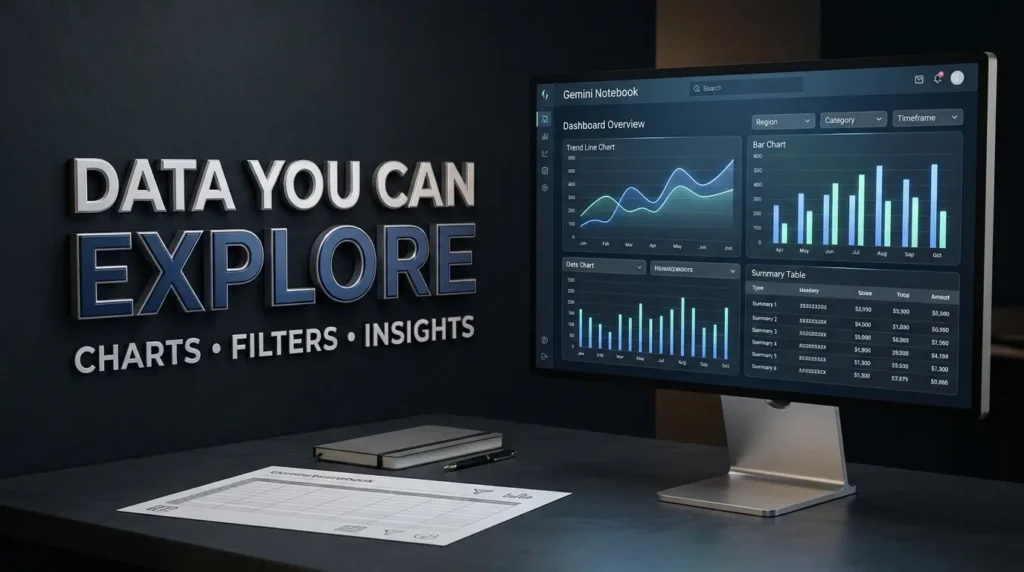
Business teams can ask for dashboards that make figures such as quarterly sales easier to examine.
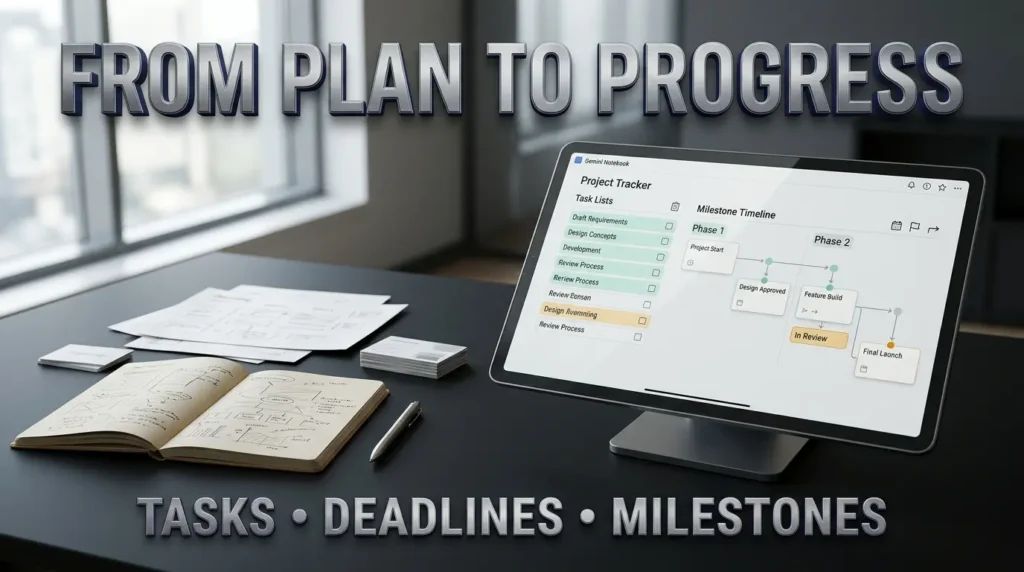
Project managers can build interactive trackers for tasks, deadlines and milestones.
The company says users can open the result in a separate browser tab or share it with other people.
The feature began rolling out globally on the web on November 16 to Gemini Notebook users aged 18 and older, including eligible Google Workspace users.
The mobile app version is planned, but Google has not announced a firm availability date.
Independent reporting by Digital Trends and Android Authority corroborates the announcement and describes Google’s study guide and business dashboard demonstrations.
The feature at a glance
| Question | Answer |
|---|---|
| Product | Gemini Notebook |
| Previous product name | NotebookLM |
| Launch announcement | November 16, 2026 |
| Starting command | “make me a site” |
| Required input | A notebook containing sources relevant to the desired site |
| Output examples | Interactive explainer, dashboard or project tracker |
| Initial platform | Web |
| Minimum age for site generation | 18 |
| Sharing | Supported with notebook access requirements |
| Download | Supported through the Studio menu |
| Usage | Subject to limits |
| Independent production hosting | Not established by the announcement |
The last distinction is worth remembering.
Google is offering an interactive way to work with notebook sources. It has not announced that Gemini Notebook replaces a full website development platform.
Wait, Isn’t This NotebookLM?
Yes.
Google introduced the original research concept at Google I/O 2023 under the name Project Tailwind. It subsequently became NotebookLM, a tool for organizing sources, asking questions and generating useful formats from research.
On July 16, 2026, Google officially renamed NotebookLM to Gemini Notebook.
The name changed, but the product remained a standalone research environment.
Google also expanded its role across the Gemini ecosystem and introduced additional computational capabilities.
At the time of the rename, Google said more than 30 million people and over 600,000 organizations were using the product. Those figures describe the wider service as reported in July, not the number of people who have tried interactive sites.
The new feature builds on a familiar idea: your notebook provides the context.
Instead of giving a general chatbot a blank instruction to invent an app, you can give Gemini Notebook a collection of relevant documents and ask for an interface that makes them more useful.
Why that distinction matters
Imagine a company has five internal sales reports.
A general website generator can produce an attractive dashboard layout. But unless it has the actual figures and definitions, its charts may contain placeholders or invented numbers.
Gemini Notebook is designed to work from the sources in the notebook.
That gives it a more relevant starting point, although it does not guarantee that every generated number, chart, formula or conclusion will be accurate.
The quality and completeness of the source material still matter.
How to Create Your First Interactive Site in Gemini Notebook
Google’s official Help Center instructions provide the basic procedure.
You do not need to begin with a production application or a complex software project.
Start with a notebook containing a small set of nonconfidential sources and an outcome you can easily verify.
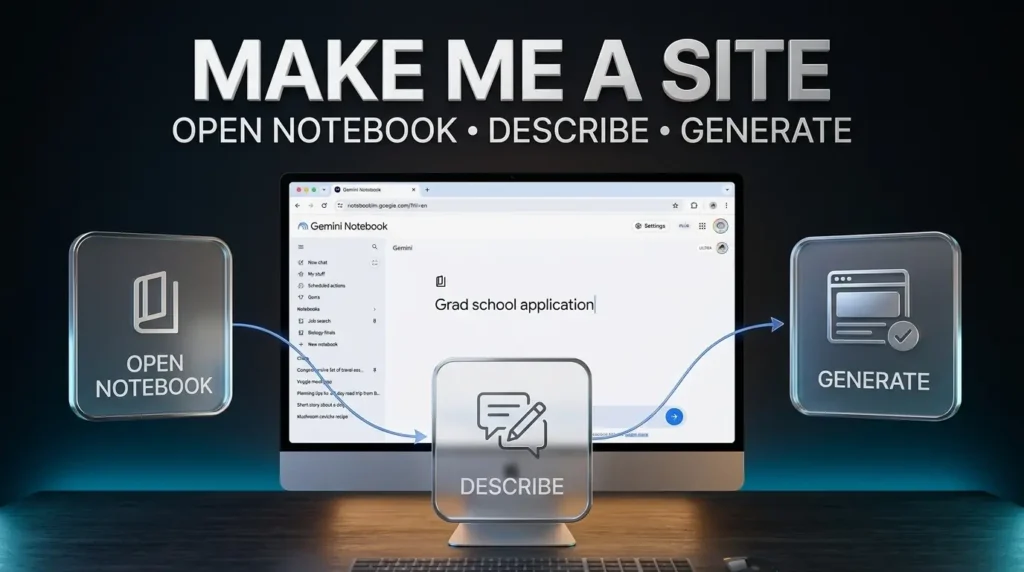
Step 1: Open Gemini Notebook
Go to notebook.google.com and sign in with a supported Google account.
The feature is being introduced on the web, so begin in a desktop browser rather than assuming the mobile app already includes it.
Your account must meet the age requirement for site generation.
If your account is managed by an employer or school, availability may also depend on its administrative settings.
Step 2: Create or choose a notebook
Open an existing notebook you can edit, or create a new notebook.
Edit access is required to generate or delete a site. Simply being able to view someone else’s notebook is not enough.
For your first example, choose a notebook with a clear subject and only the sources required for that task.
You could prepare a collection of study notes, a fictional project plan or a small set of business figures.
Step 3: Add the sources
Gemini Notebook accepts multiple source types, including PDFs, Google documents, spreadsheets, text, certain image formats and supported web material.
Google’s source documentation describes supported formats and individual file limitations.
For a simple first attempt, a PDF containing your own notes or a CSV containing fictional business data is sufficient.
Avoid confidential client information while learning the process.
Step 4: Open the Chat panel
Inside the notebook, find the Chat panel.
Ask Gemini Notebook to create a site, followed by a description of the intended experience.
For example:
Make me a site that turns these notes into an interactive study guide. Create clearly labeled topic sections, a simple concept map and five practice questions. Use only the notebook sources. If information is missing, explain that instead of inventing it.
The phrase “make me a site” is Google’s documented starting instruction.
The rest of the request tells Gemini Notebook what would make the output useful.
Step 5: Let the site generate
Google warns that creation can take some time.
You can continue working in the notebook while the site is generated.
The result appears in the Studio panel when available.
There is no need to assume that every request will produce a perfect result on the first attempt.
Step 6: Open and inspect the result
Find the generated site in Studio.
Use the menu beside it and select Open in new tab if you want a larger view.
Try every visible control.
If a dashboard has filters, compare the results against the source data.
If a study guide has questions, check whether the answers agree with the notebook’s materials.
If a tracker has editable fields, inspect how the entered information is represented.
Step 7: Decide whether to share or download it
Only after reviewing the output should you consider sending it to someone else.
Google offers sharing and downloading options, but those are different workflows.
A shared site depends on notebook access permissions. A downloaded artifact requires its own review before you assume it can be independently deployed or redistributed.
The detailed steps appear later in this guide.
Example One: Turn a PDF Into an Interactive Study Website
This is arguably the clearest way to understand what the new feature is for.
A long document contains information. A well designed learning interface helps someone explore it.
Suppose you have prepared a PDF about the solar system.
The document contains a section on each planet, basic orbital information and a short glossary.
Instead of asking Gemini Notebook to summarize the entire PDF in one answer, you can request a site with separate sections, comparisons and practice questions.
A prompt you can adapt
Make me a site using the solar system PDF in this notebook. Create an interactive learning guide for beginners. Include an overview of the eight planets, selectable information cards, a comparison table and a five question quiz. Clearly distinguish facts from any explanations or examples you add. Use the provided document as the source of truth and flag missing information.
The requested output is a learning interface, not a new scientific research source.
Before sharing it, check that the planet descriptions, classifications and numerical comparisons are correct.
The same approach could work for a history timeline, a workplace training manual or an original educational workbook.
What makes the result better?
The quality of the source is important.
A scanned document with unreadable tables will be harder to interpret than well organized digital text.
An incomplete document might leave the tool without enough information to build certain sections.
It also helps to specify the reader. A guide for a ten year old learner should be structured differently from one intended for a university student.
Google’s demonstration features an interactive periodic table, but that is an example of the capability, not a guarantee that every scientific subject will be represented perfectly.
Example Two: Make a Business Dashboard From a Spreadsheet
Imagine a small company has sales data covering three months.
The spreadsheet includes dates, regions, products and transaction amounts.
The people using it want to know which region grew, what changed month to month and whether sales were concentrated in a small number of products.
A dashboard could make those questions easier to explore.
Use a simple fictional dataset
For a practice project, prepare a CSV or spreadsheet with columns such as:
Month, Region, Product, Revenue
Enter clearly fictional rows with values you can calculate by hand.
Then import the spreadsheet into Gemini Notebook.
A reusable dashboard prompt
Make me a site that explores the sales data in this notebook. Create an interactive dashboard with a monthly revenue chart, a region filter, a product comparison table and a short explanation of how totals are calculated. Do not invent missing transactions or assume currency units that are not defined. Clearly label incomplete data.
The goal is to make existing data easier to inspect, not to generate business performance claims.
What must be checked?
First, compare the dashboard’s totals with the original spreadsheet.
Then check whether every filter behaves as described.
Look for missing records, incorrectly interpreted dates and inconsistent category names.
Finally, check whether the interface accidentally presents a correlation as an explanation.
A chart showing higher sales in one region does not automatically reveal why that region performed better.
The use case is relevant to a broader business challenge discussed in TrendOutsider’s guide to AI business solutions and implementation: AI is most useful when the output is tied to a specific operational need and verified against the underlying evidence.
Could businesses use this for customer reporting?
Potentially, for appropriate nonconfidential information and with the correct permissions.
But teams should verify whether the chosen Google account and notebook settings satisfy their organization’s data handling requirements.
A polished dashboard does not establish that the underlying data is safe to share publicly.
Example Three: Create a Project Tracker From Notes
A project plan often starts as a mixture of notes.
One document contains tasks. Another has deadlines. A meeting summary records decisions. A spreadsheet identifies who is responsible for what.
The problem is that those details are difficult to follow when they remain scattered across different files.
Gemini Notebook’s new feature can create a tracker intended to make such information easier to navigate.
A practical prompt
Make me a site that organizes this project’s notes into an interactive tracker. Include task names, owners where provided, due dates, milestones and a status checklist. Group tasks by phase. Do not assign missing owners, invent deadlines or mark work as completed unless the sources explicitly support it.
The final sentence is particularly important.
A system that automatically fills gaps can make a project look more organized than it actually is.
A blank owner field is preferable to an invented assignment.
Is it a replacement for a project management platform?
Not necessarily.
A simple tracker can be useful for understanding a project, especially in a planning meeting or a small team.
But a professional project management system may require real time synchronization, role based permissions, integrations, audit history, reminders and dependable collaboration.
Google’s announcement does not establish that all those capabilities exist in the generated sites.
For teams planning larger software projects, TrendOutsider’s guide to AI tools for product managers provides additional context on how research, prioritization and development work fit together.
A generated tracker should be judged by the actual tasks it can support, not merely by how attractive it looks.
Ten Useful Gemini Notebook Website Prompts
The following prompts are original suggested instructions based on Google’s documented feature types. They are not claims that TrendOutsider has executed and tested each output.
1. Interactive research summary
Make me a site that organizes the research sources into five major themes. Include a source linked overview for each theme, an evidence comparison table and a section explaining where the sources disagree. Do not invent research findings.
2. Historical timeline
Make me a site that creates an interactive timeline from the historical documents in this notebook. Show dated events, short explanations and links to supporting sources. Separate confirmed dates from uncertain or approximate ones.
3. Employee onboarding guide
Make me a site that transforms these approved onboarding documents into an interactive orientation guide. Organize topics by the new employee’s first week. Include a checklist and a glossary. Do not reveal restricted policies or assume access permissions.
4. Exam preparation tool
Make me a site that turns the study materials into a revision dashboard. Include topic cards, key definitions and a quiz with answers supported by the sources. Explain when the uploaded notes do not contain enough information.
5. Market research explorer
Make me a site that compares the market research reports in this notebook. Group findings by geography, audience and publication date. Include source references and clearly label any conflicts between reports.
6. Content planning tracker
Make me a site that organizes the approved content calendar and editorial notes into a planning tracker. Show article titles, owners, deadlines and publication status only when they appear in the sources. Highlight missing decisions.
7. Training manual navigator
Make me a site that helps staff navigate this equipment training manual. Include searchable sections, a glossary and clearly identified safety instructions. Do not replace missing instructions with invented procedures.
8. Customer feedback dashboard
Make me a site that organizes this anonymized customer feedback dataset into categories. Show recurring themes, counts and examples without exposing personal information. Keep original feedback meaning intact.
9. Project milestone tracker
Make me a site that organizes the project plan into phases, dependencies, owners and milestones. Include a progress checklist while keeping missing dates and unknown statuses visibly unresolved.
10. Interactive reading companion
Make me a site that turns these authorized reading notes into a chapter navigator, concept glossary and practice questions. Use only the sources and distinguish quotations from summaries.
The strongest prompt is rarely the longest one.
What matters is whether it defines the purpose, audience, required features and boundaries.
And the more consequential the information, the more important it is to verify the result before anyone relies on it.
How to Share a Gemini Notebook Interactive Site
Sharing is one of the most useful features and one of the easiest to misunderstand.
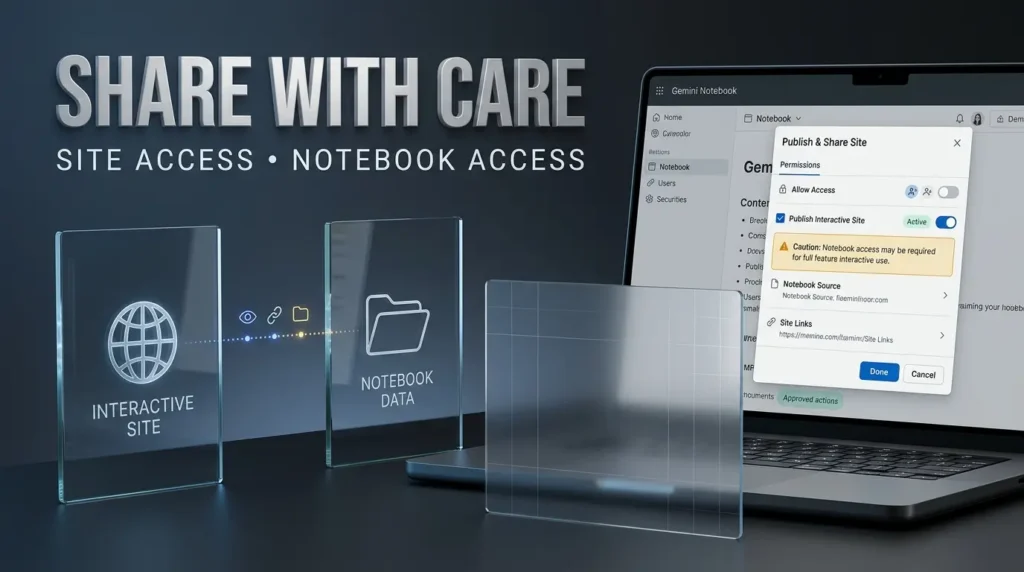
According to Google’s site generation Help Center, the person opening a shared site must also have access to the notebook that contains it.
That means the recipient’s access is not necessarily limited to the final visual page.
The official sharing steps
- Open the notebook containing the generated site.
- Find the site in the Studio panel.
- Open the menu beside the site and select Share.
- Check the notebook’s access settings.
- Make sure the intended recipients have access to the notebook.
- Select Copy link to artifact.
- Save the sharing settings and send the link to the intended recipients.
Google specifies that making sites publicly shareable and managing public access require an eligible consumer account and the appropriate owner or editor role.
This should not be interpreted as a promise that every Workspace organization allows public sharing.
The privacy issue you should check first
Suppose you create a dashboard from confidential sales reports.
You want to share the dashboard with a contractor, but you do not want that contractor to read the underlying reports.
That is not a situation where you should assume the artifact link is a protective boundary.
Google’s documentation states that viewers must have access to the full notebook.
Its public notebook sharing guidance also explains that a restricted looking chat view does not completely prevent access to other notebook material.
The practical rule is straightforward: do not use a shared notebook artifact as a substitute for carefully designed document permissions.
If the source material should not be shared, do not enable notebook access simply to distribute the generated site.
Can other people see my inputs inside a shared site?
Google’s documentation says users of a shared site, including the owner, see their own site inputs rather than the inputs other viewers have made.
It also says a site can reopen with selections and inputs previously made by the current user.
That is helpful for interactive use, but it should not be treated as proof of a comprehensive privacy architecture for every form of sensitive data.
Review the applicable account terms and data handling information before uploading anything confidential.
How to Download a Gemini Notebook Website
Google documents a direct download option.
Open the notebook, find the generated site in Studio, open its menu and select Download.
You can then share the downloaded file according to the instructions and the rights you have over its contents.
But what exactly happens after downloading?
That is where expectations need to be kept realistic.
Google has not stated in the November 16 announcement that every downloaded site is a complete standalone application capable of independent hosting with its original functionality intact.
Nor has it announced an integrated custom domain, payment system or ecommerce backend for this feature.
If you intend to use the output outside Gemini Notebook, inspect the downloaded file, verify the content and test any interactions in the environment where you plan to use it.
For a public production website, accessibility, security, hosting, domain configuration and long term maintenance remain separate considerations.
Is Gemini Notebook’s Website Builder Free?
Gemini Notebook offers a standard access tier alongside paid AI plans and qualifying Workspace arrangements.
Google announced the interactive site feature for eligible users during a phased rollout, including Workspace subscribers.
However, site generation is subject to usage limits, and its new announcement does not establish a universal number of free sites per day.
Google’s usage limit documentation describes compute based limits influenced by factors such as task complexity, source volume and the model capabilities involved.
Limits can refresh periodically and vary by account tier. Google may also change them.
That means it is misleading to promise unlimited free website generation.
What about subscriptions?
The official plans page describes access through standard and upgraded tiers.
Paid plans may provide higher overall usage allowances, depending on the account and current terms.
A user should check the available limit and any upgrade requirement inside their own account rather than relying on a static article to quote an unverified site generation quota.
For most readers, the sensible starting point is to try a small project using the access they already have.
There is little reason to purchase an expensive subscription before finding out whether the feature helps with their actual work.
What Happens to Your Documents and Data?
Gemini Notebook is built around imported source material.
That creates a useful foundation for research, but it also makes data handling a significant part of the decision to use it.
Google’s privacy guidance distinguishes ordinary notebook data, submitted feedback and the additional terms covering certain work or education accounts.
Google says notebook data is not used to train its models unless users provide feedback, under the applicable consumer arrangements.
Feedback can involve the associated sources, prompts and responses being reviewed to improve the service.
Qualified Workspace accounts have separate data protection conditions.
Three precautions worth taking
First, minimize the sources. If a dashboard only needs a small anonymized sales table, do not upload a full customer database.
Second, review access before sharing. The recipient of a site may need access to the notebook and its sources.
Third, check the current terms for your account. A personal Google account and an organization managed Workspace account may not have identical sharing or data handling capabilities.
The broader point is familiar to anyone adopting AI in business: a convenient interface is not a substitute for clear information governance.
Gemini Notebook vs Google AI Studio, Gemini and Claude
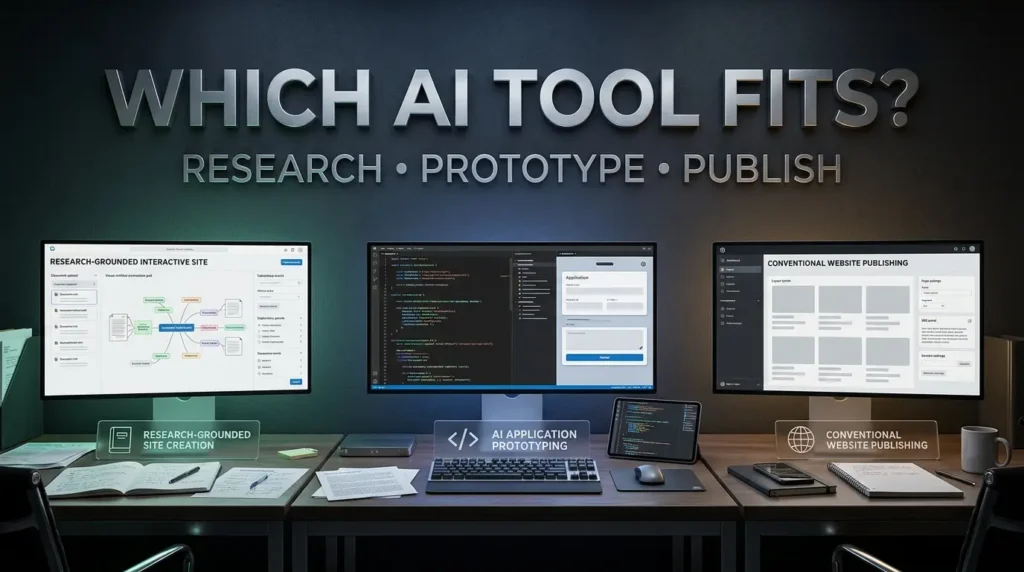
A confusing part of the current AI landscape is that several products can generate interactive experiences.
They are not all trying to solve the same problem.
| Tool | Primary approach | Best fit |
|---|---|---|
| Gemini Notebook sites | Builds interactive artifacts grounded in notebook sources | Study guides, research interfaces, dashboards and trackers |
| Gemini app | Broad AI assistant for questions and supported tasks | General assistance and creating content across supported tools |
| Google AI Studio | Developer environment for working with Google’s AI models | Prototyping and building AI applications |
| Claude Artifacts | Interactive documents or applications generated within Claude’s supported environment | Shareable prototypes and self contained interactive creations |
| Traditional website builders | Website publishing, design and management | Public sites, custom domains, business websites and production operations |
The distinction is not which product has the most dramatic demonstration.
It is where the information comes from, who needs to use the result and what happens after generation.
Gemini Notebook’s particular appeal is the connection to the information you have collected.
But if your goal is to launch an ecommerce store with payments, user authentication, SEO settings and a customer database, a more complete website development stack will be required.
Similarly, a team building production automation needs more than a visual tracker.
TrendOutsider’s AI agents workflow automation guide explores the more demanding task of connecting systems and managing automated work.
What Gemini Notebook Sites Cannot Be Assumed to Do
The feature is new. That makes it important to distinguish Google’s confirmed functions from capabilities users may hope it has.
Google has demonstrated interactive sites from notebook sources.
It has documented opening, sharing and downloading them.
It has not established that generated sites universally support custom domains, public search indexing, database backends, payment gateways, production security controls or continuous synchronization with every external data source.
The documentation also notes that updating or removing source material does not automatically update all existing Studio outputs generated from it.
That means a generated site could require regeneration or manual review after its underlying research changes.
Accuracy remains a separate problem
An impressive chart can display the wrong total.
A study guide can contain a misleading explanation.
A project tracker can omit a dependency.
Before treating any generated site as authoritative, compare important information against the original sources.
This is especially important for medical, financial, legal and operational decisions.
Troubleshooting: If “Make Me a Site” Doesn’t Work
The option hasn’t appeared
The November 16 launch is a phased rollout.
Confirm that you are using Gemini Notebook on the web with an eligible account and that you meet the age requirement.
You cannot generate a site in a shared notebook
Google requires edit access to generate or delete sites.
Ask the notebook owner whether your permissions allow editing.
The output does not include expected information
Confirm that the necessary material is present in the notebook and selected as a source where applicable.
Check whether the document was imported correctly, especially if it contains complicated layouts or scanned pages.
The site gives unexpected answers
Review source quality and request a narrower, more explicit structure.
Do not accept a generated answer merely because it appears inside a polished interface.
You have reached a usage limit
Check the limits indicated in your account.
Google’s usage system depends on several factors and may refresh after a waiting period. Paid plans can provide higher allowances, but an upgrade is not guaranteed to resolve every feature availability issue.
Someone cannot open the shared site
Check whether the recipient has access to the notebook.
For public sharing, confirm your account is eligible and that the notebook’s sharing settings actually allow the intended access.
A source changed but the site looks outdated
Do not assume existing Studio outputs update automatically after source changes.
Review the current sources and regenerate or otherwise refresh the artifact as appropriate.
Frequently Asked Questions
Can Gemini Notebook really create a website from a PDF?
Yes. Google’s new feature can generate interactive sites from notebook sources, including eligible PDFs. The output is best understood as a notebook generated interactive artifact rather than a guaranteed production website.
Is Gemini Notebook the same as NotebookLM?
Yes. Google renamed NotebookLM to Gemini Notebook on July 16, 2026.
What should I type to create a site?
Start with “make me a site,” followed by the kind of interface you need and the sources it should use.
Is the feature available on mobile?
Google began the rollout on the web on November 16, 2026. Mobile app availability was described as coming soon without an announced date.
Can students use it?
Eligible users aged 18 and older can access the site generation feature during the rollout. Account and organizational restrictions can still apply.
Does it work with Google Workspace?
Google includes Workspace subscribers in the announced rollout. Organization policies and sharing permissions may affect particular capabilities.
Can I download my generated website?
Google’s Help Center documents a Download command in the Studio menu. Independent deployment and retained functionality need to be evaluated separately.
Can other people see my sources when I share a site?
Google requires viewers to have access to the underlying notebook. Do not assume the site link limits viewers to the generated page alone.
Are generated sites searchable on Google?
Google has not promised automatic public search indexing for these site artifacts. A publicly accessible notebook can have its own sharing behavior, but that should not be confused with publishing a conventional SEO managed website.
Can I use a custom domain?
The November 16 launch documentation does not establish an integrated custom domain publishing feature for generated sites.
Is Gemini Notebook free?
There is standard access as well as paid plans. The new site generation feature has usage limits, and available capacity depends on the account and Google’s current rollout rules.
Can I sell sites generated with Gemini Notebook?
You should first review the applicable terms, rights to the original sources, limitations of the downloaded artifact and the requirements of your customer. The announcement itself does not establish a complete commercial deployment or resale workflow.
Will it automatically update when I change a PDF?
Do not assume that. Google’s source guidance warns that existing generated Studio outputs do not automatically change when their underlying sources are modified.
The Bottom Line
Google Gemini Notebook’s interactive site feature is interesting because it changes the form in which information can be used.
A dense PDF might become a study guide. A set of sales figures might become a dashboard. Scattered project notes might become a tracker that makes missing decisions easier to notice.
That could make research more approachable for people who do not want to design an interface from scratch.
But the real test is not whether a generated page looks attractive.
It is whether the information is correct, the interaction is genuinely useful and the source material is handled responsibly.
The feature is a promising way to make notebook research more interactive.
It is not yet a reason to replace every website builder, spreadsheet or business system in your workflow.
Start with nonconfidential material, create something small and verify it carefully.
If the result helps you understand or communicate information more clearly, Google has delivered something useful.

Editorial disclosure: This article is based on Google’s November 16, 2026 product announcement, official Gemini Notebook Help Center documentation and independent technology coverage. TrendOutsider has not independently generated, downloaded, hosted or benchmarked a Gemini Notebook interactive site. The example prompts are suggested reproducible starting points, not results of a hands on test.
Privacy and technical note: Sharing permissions, availability, supported features and usage limits can change. Check the official documentation and your account’s current settings before using sensitive sources or distributing an artifact externally.
Visual disclosure: AI generated imagery accompanying this article is conceptual editorial illustration unless an actual Google screenshot is explicitly identified and credited. Fictional example dashboards must not be presented as real product output or verified business performance.








Leave a Reply