
For years, the promise of an AI assistant was that it could help you figure out what to do next.
You could ask it to explain a complicated spreadsheet, draft an email or guide you through a piece of software. But when the conversation ended, you still had to open the application, navigate its menus and finish the work yourself.
Google wants to change that.
On November 19, 2026, the company announced a major expansion of Gemini for Mac, introducing Computer use, a feature that allows its AI assistant to operate desktop applications and websites on your behalf.
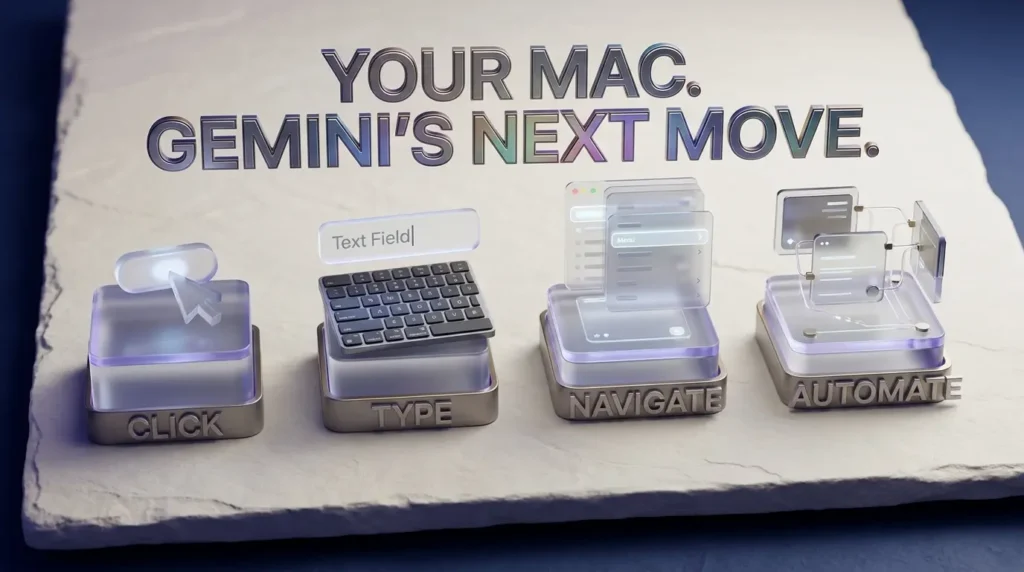
It can click buttons, type into fields, navigate menus, work with local files and carry out supported tasks involving multiple applications.
Perhaps the most interesting detail is that Gemini doesn’t need to take over the desktop you’re actively using.
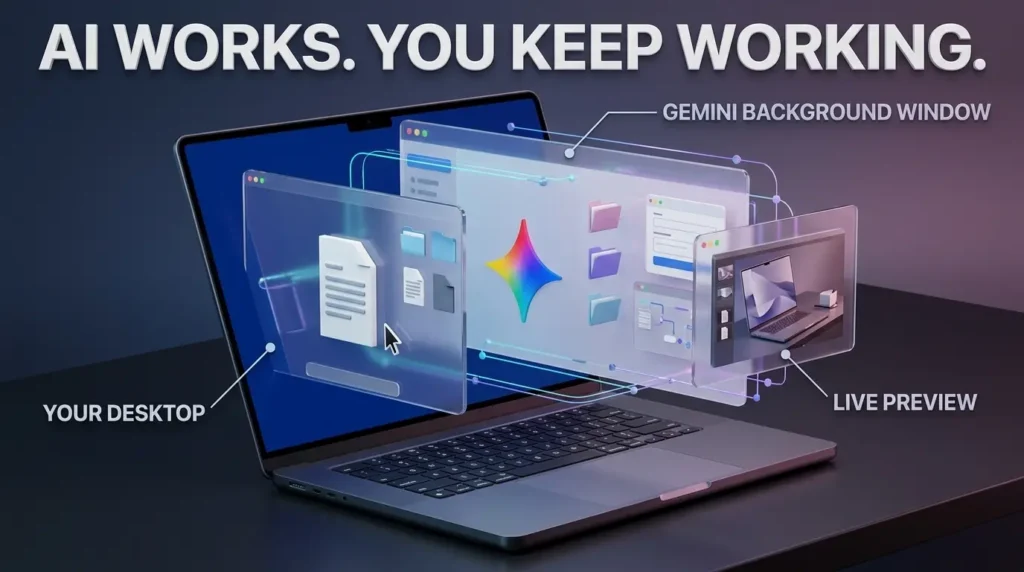
Google says the assistant operates in a separate background window, with a live preview inside the Gemini conversation. Your main screen and cursor remain available while the task runs.
That sounds like a significant step toward the AI agents technology companies have been promising.
But it also raises an important question.
What happens when an AI assistant stops simply reading information and gains the ability to act inside your computer?
The answer involves much more than convenience.
Gemini’s new capability comes with hardware requirements, subscription restrictions, permissions and security risks that users should understand before granting access to their applications.
Here’s what Google has actually announced, how the feature works, who can use it and where its limitations begin.
What Did Google Announce on November 19?
In its official announcement, Google introduced Computer use for the Gemini app on Mac, describing a feature that can automate repetitive work across desktop applications, local files and websites.
The idea is straightforward.
Instead of explaining every individual step you want the AI to perform, you describe the outcome.
Gemini then attempts to move through the relevant software and complete the task using the permissions you’ve granted.
For example, you might need information from several PDF documents entered into a business form. Or perhaps you have a folder of photographs that require similar adjustments.
Traditionally, those jobs involve opening files, copying information, navigating interfaces and repeating the same actions.
Gemini’s new Computer use capability is intended to handle some of that interaction directly.
Gemini Computer Use at a Glance
| Question | Answer |
|---|---|
| What is the new feature? | Computer use in the Gemini app for Mac |
| When was it announced? | November 19, 2026 |
| What can it do? | Click, type, scroll, navigate menus and interact with supported applications |
| Can it use local files? | Yes, within the permissions and supported workflows |
| Does it control your active desktop? | Google says it operates in an isolated background window |
| Can you see what it’s doing? | Yes, through a live preview |
| Can you stop it? | Yes |
| Where is it launching? | United States, English |
| Does it work on Intel Macs? | No, the documented Mac app requirements specify Apple Silicon |
| Which macOS version is needed? | macOS Sequoia 15.0 or later |
| Is it free? | The new Computer use feature is tied to eligible paid subscriptions |
| Is it available in Europe or Australia? | Not in the initial Computer use rollout |
There is also a subscription detail worth checking carefully.
Google’s launch announcement lists AI Plus, Pro and Ultra subscribers. Its current detailed setup documentation, however, specifically lists Pro and Ultra.
That discrepancy means subscribers should check eligibility inside their accounts rather than assume a particular plan guarantees immediate access.
The new feature is also rolling out gradually, so an eligible account may not receive it on the first day.
What Can Gemini Actually Do on a Mac?
The most interesting part of Google’s announcement isn’t that Gemini can press a button.
It is the possibility of completing a task that moves through several different applications.
A human might open a folder, examine some files, switch to another program, enter information, save the result and return to the original application.
An AI agent with computer access can attempt that sequence without needing a dedicated integration for every individual action.
Google has outlined several examples.
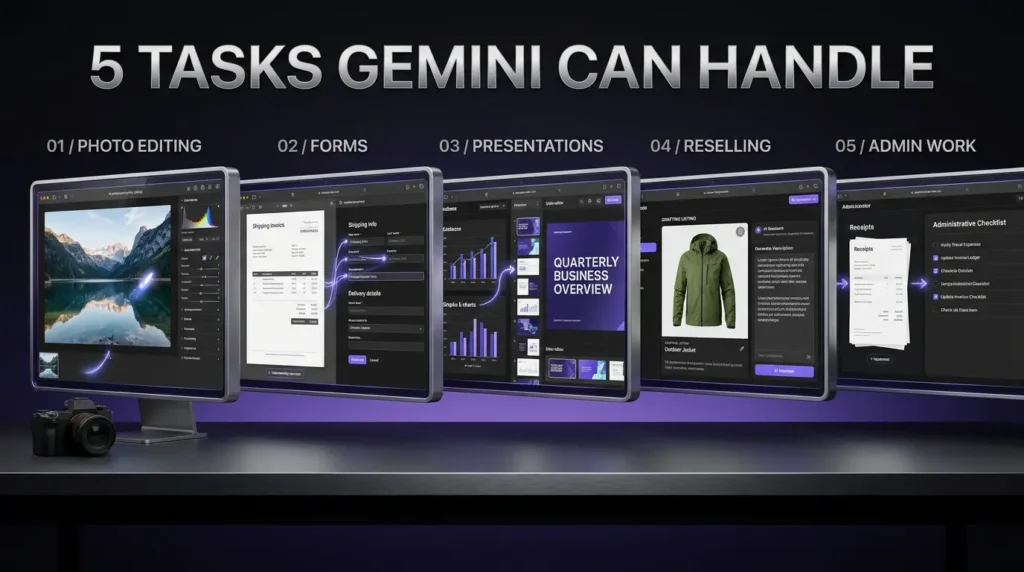
1. Edit Multiple Photographs
Imagine returning from a trip with dozens of photographs.
You want similar lighting adjustments across an entire collection, but opening each image and repeating the same editing steps takes time.
Google suggests that Gemini can help batch edit photographs in supported design software.
Its Help Center gives an example involving importing travel photographs into Lightroom, adjusting their lighting and exporting the results.
That doesn’t mean Gemini has been independently shown to match a professional photographer’s judgment.
Nor does it establish that every image editing application or complex editing operation is supported.
It does demonstrate the kind of workflow Google wants users to delegate.
For photographers, designers and content creators, the appeal is easy to understand: less repetitive interface work and more time spent reviewing the final result.
2. Fill Out Complicated Forms From Local PDFs
Administrative work is another obvious target.
Suppose a shipping company needs weights, dimensions and addresses copied from local PDF documents into a quotation form.
A person may have to move repeatedly between the documents and a website.
Google says Gemini can attempt this kind of workflow by extracting the relevant information and entering it into the appropriate fields.
The benefit could be substantial when the task involves dozens of repetitive entries.
But accuracy becomes critical.
A misplaced decimal point in a shipment weight or a wrong address could cause an expensive mistake.
Users should therefore review important fields before submitting a form.
The ability to fill out a document is not proof that every value was interpreted correctly.
3. Build Presentations From Dashboard Data
Google also describes a workflow in which Gemini gathers figures and screenshots from dashboards covering multiple regions, then uses the information to prepare a presentation.
This is particularly relevant to people who regularly create reports.
A sales manager might want a summary of regional activity. A marketing analyst might need screenshots and figures from several platforms.
The repetitive work is not necessarily analyzing the entire business.
Often, it is gathering information and arranging it in the required format.
Gemini aims to handle parts of that process.
However, a presentation generated from dashboard data should still be checked against the underlying figures.
An attractive slide does not establish that the correct reporting period, currency or metric was used.
4. Prepare Online Marketplace Listings
Google’s fourth major example involves selling used clothing or other products.
The assistant can analyze photographs from a local folder, research pricing, log product details and help prepare listings for supported resale platforms.
That combines several activities: viewing local images, searching for information, organizing descriptions and interacting with a website.
It is a compelling example because the process doesn’t live entirely inside one app.
But it also illustrates an important limitation.
Researching a suitable price is not the same as proving a particular item is worth that amount.
And preparing a listing should not be confused with confirming that the listing was successfully published, accepted or sold.
Google describes staging listings, not an unconditional guarantee of completed sales.
5. Organize Administrative Tasks Across Applications
Google’s Help Center offers further examples involving receipts, expense reports and ordinary desktop settings.
These are less dramatic than advanced 3D design, but they may be more useful to many people.
Consider how frequently a working day is interrupted by small administrative tasks.
Finding a receipt. Copying details into another application. Opening a particular file. Changing a setting. Preparing a summary.
Each action is relatively simple.
Together, they consume time and attention.
Computer use is Google’s attempt to make those sequences easier to delegate.
How Gemini Computer Use Works in the Background
Most people are familiar with an AI assistant that sits beside their work.
You type a question, wait for a response and act on the advice.
Computer use introduces a different relationship.
Gemini can interact with an application directly, using a separate working environment while you continue using your Mac.
Google describes this as an isolated background window.
Your Main Screen Stays Available
Imagine asking Gemini to organize details from a group of receipts while you’re writing an email.
Ordinarily, an automation tool that controls your mouse and keyboard might interfere with your work.
Google’s approach is designed to avoid that interruption.
The assistant carries out its actions inside a separate screen environment, keeping the main desktop and cursor available for your own activity.
This matters for tasks that take more than a few seconds.
You don’t necessarily want to surrender the entire computer every time an assistant opens a menu or navigates a form.
You Can Watch the Task
Google says the Gemini chat includes a live preview of the application being operated.
Users can expand the preview and observe the work.
That creates a useful distinction between an agent acting invisibly and one whose progress can be inspected.
A live preview does not guarantee that every action is correct.
It does, however, provide a way to notice obvious mistakes before they become more serious.
You Can Stop the Agent
The official instructions include a Stop task control.
Users can also manage permissions for individual applications.
This is particularly important because a desktop assistant may encounter unexpected situations.
A website could change its layout. An application might display an unfamiliar dialog. A file could contain information that the assistant misinterprets.
When that happens, the ability to stop the workflow matters more than the promise of complete autonomy.
The Background Window Is Not a Separate Security Guarantee
An isolated working window should not be confused with an assurance that nothing sensitive can be accessed.
Google’s own documentation explains that an authorized agent can interact with applications containing logged-in accounts and local information.
The background environment is designed to separate the agent’s visible work from your active desktop.
The scope of its access still depends on the permissions you grant.
That is why app-level authorization deserves as much attention as the background window itself.
How to Set Up Gemini Computer Use on Mac
Google has published a dedicated setup guide for using Gemini with Mac applications.
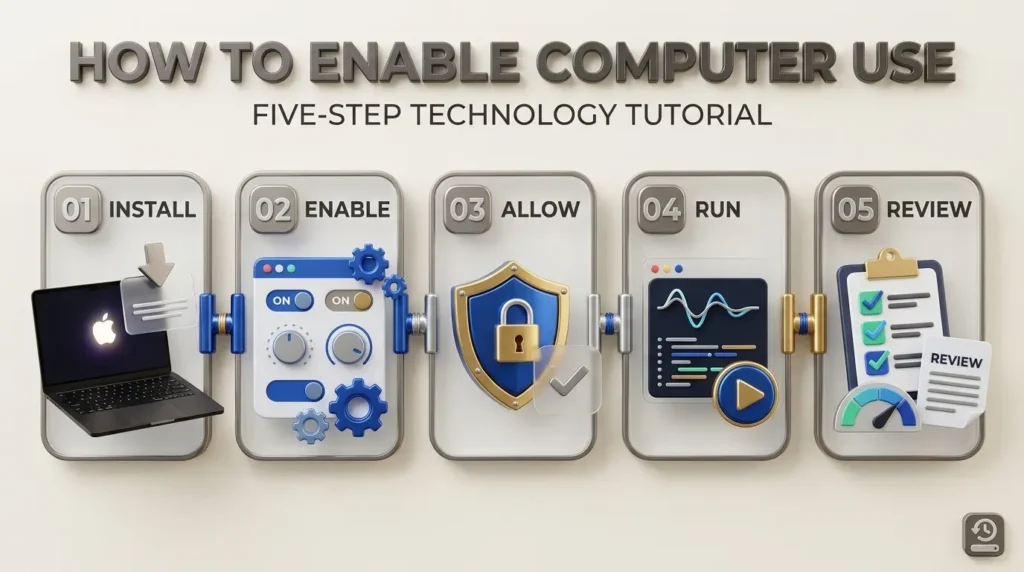
The process involves installing the Mac app, enabling Computer use, reviewing operating-system permissions and selecting the applications Gemini can access.
These instructions apply only when the feature is available to your account.
Step 1: Confirm That Your Mac Is Compatible
First, confirm that you’re using a Mac with Apple Silicon.
Google’s Gemini for Mac requirements specify macOS Sequoia 15.0 or later, at least 8 GB of RAM and sufficient storage for the application.
A stable internet connection is required.
The published requirements do not support Intel-based Macs.
Step 2: Install the Gemini Mac App
Visit Google’s official Gemini for Mac download page.
Download the application and follow the installation instructions.
Do not download modified installers from unfamiliar websites claiming to unlock unavailable subscription features.
Step 3: Sign In With an Eligible Account
For the new Computer use feature, Google specifies a personal Google account belonging to an adult aged 18 or older.
The initial rollout is in English in the United States.
The detailed Computer use guidance states that this capability is not currently available for work or school accounts.
The regular Gemini Mac app has broader availability, so being able to install the application does not necessarily mean Computer use is enabled.
Step 4: Enable Computer Use
Open Gemini for Mac.
In the application settings, find the Computer use section.
Google’s instructions describe turning on the option that allows Gemini to work with your Mac.
You may also need to enable macOS Accessibility and Screen & System Audio Recording permissions.
Those permissions are consequential because they allow software to observe and interact with aspects of the desktop.
Grant them only through the legitimate macOS settings interface.
Step 5: Review Application Access
Google allows users to approve or block Gemini’s access to individual applications.
The first time Gemini attempts to work with an app, it may request permission.
The available choices include denying access, allowing a particular interaction or allowing continued access.
A cautious starting approach is to approve only what the specific task requires.
You should not need to grant access to every application simply to process a few ordinary files.
Step 6: Enable File Backups Where Appropriate
Google’s documentation recommends using its on-demand file backup option.
This can help protect against unwanted changes while the assistant works.
However, Google also warns that backups cannot reverse every kind of action.
A file might be recoverable, while an external message or a purchase may have consequences that cannot be undone through a local backup.
Step 7: Start a Task
Within the Gemini app, switch to Task mode.
Google’s Help Center describes using @Computer use in the instruction to direct Gemini toward desktop interaction.
For example, a conservative first task might be:
Use Computer use to review a folder of sample receipts and prepare a summary of their dates and amounts. Do not delete, move or modify the original files. Show me the summary before saving anything.
This example is a suggested starting prompt, not a workflow TrendOutsider has independently tested.
Step 8: Review the Result
Watch the live preview.
If Gemini requests permission for another application, consider whether the request is necessary.
When the task finishes, inspect the output.
Compare important information with the original documents.
If a file was changed, check the actual file rather than relying only on the assistant’s completion message.
Is Gemini Computer Use Free? Who Can Access It?
One of the most important distinctions in the launch is the difference between the Gemini Mac application and its Computer use feature.
The Mac application itself was introduced earlier in 2026 and has broader availability.
The new computer-control functionality is a more restricted capability.
United States
Google launched Computer use in English for eligible adult personal-account users in the United States.
Its November 19 announcement lists Google AI Plus, Pro and Ultra subscribers.
However, the detailed setup Help page specifically mentions Pro and Ultra.
Because those official descriptions differ, the safest interpretation is that the rollout and account eligibility should be checked directly in the application, particularly for Plus subscribers.
Availability may also depend on whether the gradual rollout has reached the account.
United Kingdom
The United Kingdom is not included in the initial Computer use launch.
British users may be able to use the regular Gemini Mac app, but that is not evidence that the new desktop automation controls are available.
Google has not announced a confirmed UK launch date.
Germany, France and Other European Countries
The same restriction applies to European readers.
The November 19 Computer use rollout is US-only.
There is no confirmed date for expansion across the European Union or the wider European market.
Australia
Australia is not included in the initial Mac Computer use rollout.
That is worth distinguishing from the separate Gemini Tasks product, which has broader availability in certain countries, including Australia.
Different Gemini features have different eligibility rules.
Canada and Other Regions
Canada is also outside the initial Computer use launch.
Google has not published a definitive global rollout schedule.
Until an official announcement changes the situation, articles claiming that the feature works worldwide should be treated cautiously.
Gemini Computer Use Availability by Region
| Region | New Mac Computer use feature |
|---|---|
| United States | Rolling out to eligible accounts |
| United Kingdom | Not in initial rollout |
| Germany | Not in initial rollout |
| France | Not in initial rollout |
| Other European countries | Not in initial rollout |
| Australia | Not in initial rollout |
| Canada | Not in initial rollout |
| India | Not in initial rollout |
This table refers specifically to Mac Computer use, not to the general Gemini app or all Gemini Tasks functionality.

The Biggest Concern: What Happens When AI Can Control Your Apps?
The most consequential part of Google’s announcement may not be the productivity features.
It may be the access those features require.
An assistant that only answers questions can still provide incorrect information.
An assistant that operates desktop software may also change files, send information, enter values into forms or take actions through accounts that are already signed in.
Those possibilities introduce a different level of responsibility.
Google’s official Computer use documentation explicitly warns that agentic AI can make mistakes and behave unexpectedly.
It also identifies several important risks.
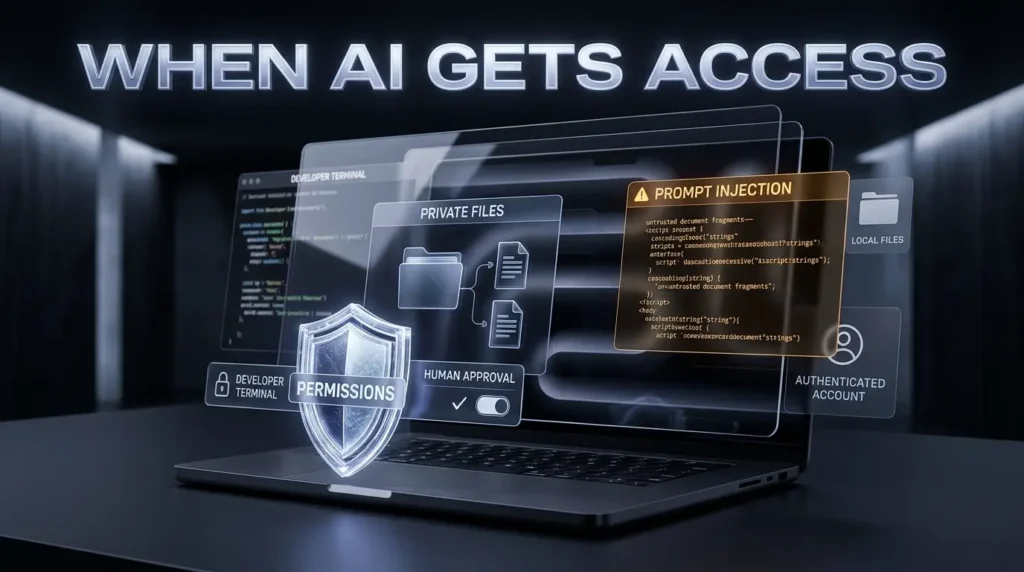
1. Access to Signed-In Accounts
A desktop application may already be authenticated.
Your email client, messaging app, developer tool or cloud storage software might contain an active account session.
If an AI agent is permitted to interact with that application, it may encounter information or functionality available through that session.
This is different from giving an assistant access to a public webpage.
A logged-in application can expose private information and actions that affect other people.
Users should therefore consider not only which app is being authorized, but which accounts and data are available inside it.
2. Prompt Injection Across Applications
Prompt injection is a security risk in which untrusted content attempts to influence an AI system’s behavior.
Imagine an assistant reviewing a document that contains instructions unrelated to your original request.
A malicious instruction might attempt to persuade the assistant to open another application or perform an unauthorized action.
Google’s documentation specifically warns that untrusted content displayed in one application can influence an agent and cause it to attempt actions across permitted application boundaries.
That makes desktop agents more complicated than ordinary text assistants.
The AI may need to read untrusted material to perform its job, but it must not treat that material as instructions from the user.
3. Developer Tools Can Have Powerful Consequences
Certain applications can execute commands or change substantial portions of the file system.
A code editor, terminal or development environment may offer access to far more than the document currently visible on screen.
Google warns that authorizing access to some developer applications can enable shell execution and broader file modifications.
This deserves particular caution.
A request that sounds like a simple editing task should not accidentally become authorization for unrestricted system changes.
When possible, use a separate test environment, keep backups and avoid granting broad access to production credentials or sensitive projects.
4. Authentication Codes and Sensitive Messages
Desktop agents may encounter authentication prompts or verification codes displayed in messaging applications.
Google identifies this as a risk in its documentation.
A security code is not ordinary reference information.
Users should be careful when authorizing access to applications that receive sensitive login notifications or account recovery messages.
5. Some Actions Cannot Be Undone
Google recommends file backups, but it also acknowledges their limitations.
A deleted file might be recoverable from a backup.
An external email, a completed transaction or information disclosed to another service may be impossible to fully reverse.
For that reason, approval before consequential actions is essential.
How to Reduce the Risk
Begin with low-risk, reversible tasks.
Grant access only to applications genuinely needed for the task.
Keep backups enabled when working with files.
Review any action involving messages, payments, accounts, publication or deletion.
Avoid exposing passwords, payment card information and production credentials unnecessarily.
And if the assistant behaves unexpectedly, stop the task and inspect what has happened.
The real safety question isn’t whether Gemini can complete a workflow. It’s whether the user can understand, constrain and verify the actions being taken.
Gemini Computer Use vs Gemini Tasks: What’s the Difference?
Google’s growing collection of AI features can be confusing.
Computer use arrives just days after the company expanded access to Gemini Tasks, previously known as Gemini Spark.
They are related, but they should not be treated as identical products.
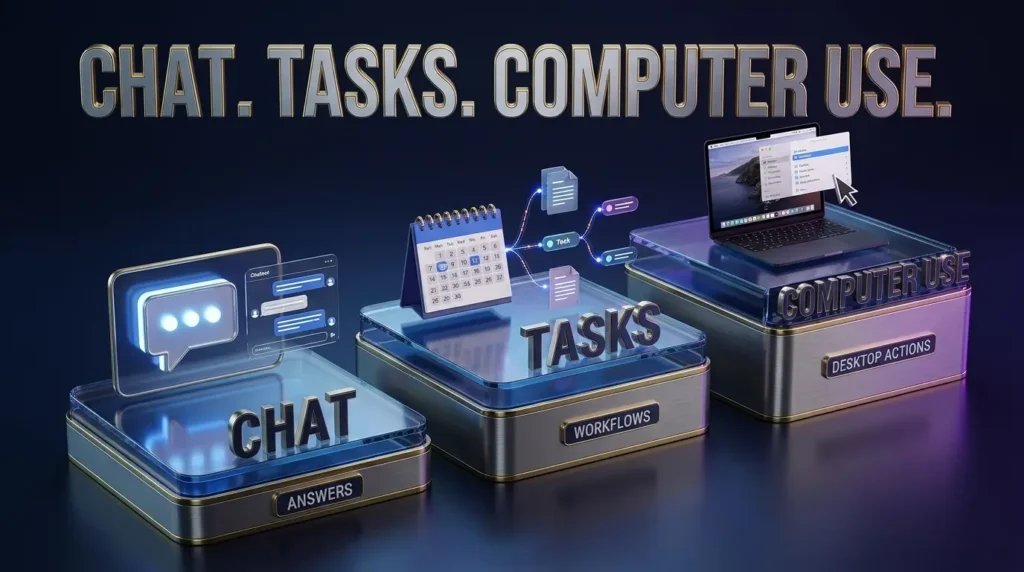
Gemini Chat
Gemini Chat is the familiar conversational assistant.
You ask questions, request explanations, generate content or discuss an idea.
It may work with supported tools and information, but an ordinary conversation does not automatically authorize control of your desktop applications.
Gemini Tasks
Gemini Tasks is designed to help carry out supported assignments using connected services and available agent capabilities.
On November 17, Google announced expanded subscription-free access to Tasks in six countries, including the United States, Canada, India, Japan, South Korea and Australia.
TrendOutsider covered that development in our guide to Gemini Tasks becoming free in six countries.
That announcement should not be confused with worldwide access to Mac Computer use.
Gemini Computer Use for Mac
Computer use is the new capability that lets Gemini interact directly with permitted Mac applications.
Instead of relying only on supported connected services, the agent can use interface actions such as clicking, typing and scrolling.
That expands the types of work it may attempt.
It also creates additional risks because desktop applications can contain local files, active sessions and powerful system tools.
Gemini Chat vs Tasks vs Computer Use
| Capability | Gemini Chat | Gemini Tasks | Mac Computer use |
|---|---|---|---|
| Answer questions | Yes | Can use AI reasoning | Can use AI reasoning |
| Organize supported workflows | Limited to available features | Yes | Yes, through supported desktop interactions |
| Work through connected services | Depends on integration | Yes | May interact with permitted local apps and websites |
| Click in native Mac apps | Not ordinary Chat behavior | Depends on supported capabilities | Yes, for authorized apps |
| Requires desktop app permissions | Not generally for basic chat | Depends on workflow | Yes |
| Initial November 19 Mac rollout | Not applicable | Separate eligibility | US only |
A useful way to understand the distinction is to think about how the assistant reaches the information.
A connected-service agent uses supported integrations.
A computer-use agent can also attempt to operate the software interface itself.
Both approaches can be valuable.
Neither guarantees successful completion of every task.
How Does Gemini Compare With Other Computer-Using AI Agents?
Google is entering a developing market rather than inventing an entirely new category.
Other companies have already explored assistants that can navigate websites, use tools or operate software.
Independent reporting by TechCrunch notes that OpenAI, Anthropic and Meta have introduced related agent capabilities.
However, those products differ in important ways.
Some work primarily through browser environments.
Others use connected applications or dedicated computer environments.
The availability of native desktop control, application permissions, human approval and account access varies.
It would be misleading to claim that Gemini has already beaten competing agents simply because Google demonstrated an impressive workflow.
TrendOutsider has not independently benchmarked these systems.
Google’s Interesting Advantage
Google’s Mac Computer use approach emphasizes a separate working window while the user’s main desktop remains available.
That could be attractive for people who want to delegate a time-consuming task without surrendering their active workspace.
Its broader Gemini ecosystem also includes connected services, task automation and developer-facing computer-use technology.
Google previously introduced computer-use functionality in its Gemini developer models, including Gemini 3.5 Flash.
But a model capability available to developers is not automatically the same as a consumer feature inside the Mac app.
The Mac release adds a user-facing workflow and permission system around the underlying technology.
Where Competition Will Matter
The meaningful questions are more practical than brand recognition.
Can the agent finish a complex task reliably?
Does it recognize when something has gone wrong?
Can users restrict access to sensitive applications?
Does it work across the software people actually use?
And can it perform those tasks without creating more work through mistakes and supervision?
Those questions will matter more than a short promotional demonstration.
Another part of the debate concerns whether websites should allow outside AI agents to interact with customer accounts.
TrendOutsider recently examined this issue in United Airlines’ restrictions on unauthorized AI booking agents.
The airline’s decision demonstrates that technical capability and permission from a service provider are separate matters.
An agent might be able to navigate a website without being authorized to complete every action there.
Can Gemini Computer Use Replace Your Everyday Software Workflow?
There is a temptation to see the announcement as the beginning of a computer that simply operates itself.
The reality is likely to be more gradual.
Some tasks are repetitive and predictable.
Others require judgment, coordination with other people or an understanding of context that may not be obvious from the interface.
A useful agent needs to recognize the difference.
Repetitive Work Is the Most Promising Starting Point
Batch editing, organizing information and entering routine form details are plausible early applications.
They involve steps that can often be described and checked.
If Gemini completes those actions reliably, the time savings could be meaningful.
Sensitive Decisions Still Require Oversight
A business owner might be comfortable allowing an agent to prepare a draft inventory list.
They may be far less comfortable allowing it to change live prices across hundreds of products without approval.
Similarly, preparing an email is not the same as sending it.
Researching a payment is not the same as authorizing the transaction.
The difference between preparation and execution should remain visible.
Desktop Automation Will Not Eliminate Compatibility Problems
Applications change.
Buttons move.
Dialog boxes appear unexpectedly.
Websites introduce verification requirements.
A computer-use agent must cope with those changes, and sometimes it will fail.
Google has not published an independently validated success rate for every desktop workflow described in its announcement.
That makes reliable completion an open question rather than an established fact.
What If Gemini Computer Use Doesn’t Appear on Your Mac?
If you’ve installed Gemini and cannot find the new capability, there are several possibilities.
Check Your Location
The initial Computer use rollout is restricted to the United States.
Being located in the UK, Europe, Australia or Canada may explain why the feature isn’t visible.
Check Your Mac
Google requires Apple Silicon and macOS Sequoia 15.0 or later for the Gemini Mac app.
An Intel Mac does not meet the published hardware requirement.
Check Your Account
Computer use requires an eligible adult personal Google account.
Work and school accounts are not supported for this feature at launch, according to Google’s detailed instructions.
Check Your Subscription
The official announcement lists AI Plus, Pro and Ultra, while the current detailed setup instructions specify Pro and Ultra.
If you subscribe to Plus and cannot see the feature, verify eligibility through Google’s account interface and current documentation.
Check the Rollout Status
The launch is gradual.
Not every eligible account necessarily receives the feature immediately.
Check Mac Permissions
If Computer use appears but cannot interact with applications, inspect the relevant permissions.
Google’s instructions identify Accessibility and Screen & System Audio Recording among the operating-system permissions required.
You should also review app-specific access settings inside Gemini.
Check Whether the App Is Allowed
The feature may be enabled globally while a particular desktop application remains blocked.
Gemini is designed to request permission when accessing an app for the first time.
Do not bypass an application restriction just to make a task run.
Review What the Assistant Actually Completed
If a task stops halfway through, inspect the live preview or final result.
A partial workflow is not a complete workflow.
Avoid assuming that a file was saved, a form was submitted or a message was sent without checking the actual destination.
Frequently Asked Questions
Can Google Gemini really control a Mac?
Yes. Google announced Computer use for its Gemini Mac app on November 19, 2026. It can interact with permitted applications through clicking, typing, scrolling and menu navigation.
When was Gemini Computer Use released?
Google announced the Mac feature on November 19, 2026, with a gradual rollout beginning in the United States.
Is Gemini Computer Use free?
No free rollout for the new Mac computer-control feature was announced. Google lists eligible paid AI subscriptions, although its announcement and detailed setup guide differ on whether AI Plus is included.
Does it work on Intel Macs?
No. Google’s published Gemini Mac requirements specify Apple Silicon.
Which macOS version is required?
The Mac app requires macOS Sequoia 15.0 or later.
Is Gemini Computer Use available in the UK?
Not in the initial November 19 rollout. Google has not announced a confirmed UK expansion date.
Is Gemini Computer Use available in Australia?
Not in the initial rollout. Australia has separate Gemini Tasks availability, which should not be confused with Mac Computer use.
Is Gemini Computer Use available in Europe?
The new feature is launching in the United States. Google has not announced an EU release date.
How do I turn on Gemini Computer Use?
Open the Gemini Mac app, find Computer use in Settings, enable the feature if your account is eligible, review the required macOS permissions and authorize the applications needed for your task.
What does @Computer use mean?
Google’s instructions describe using @Computer use within a Task to tell Gemini to interact with desktop software.
Can Gemini work while I’m using my Mac?
Google says it operates in a separate background window with a live preview, leaving the main screen and cursor free.
Can Gemini access my files?
It can work with local files as part of authorized workflows. The scope depends on the applications, operating-system permissions and account access involved.
Can Gemini use Photoshop, Lightroom or Blender?
Google describes photo editing and 3D software workflows as potential uses, including design application examples. Specific operations and application compatibility should be checked rather than assumed.
Can Gemini send emails or make purchases?
The new Computer use feature can interact with authorized applications, but actions involving account access, messages and payments may require additional confirmation or be restricted. It does not guarantee compatibility with every service.
Is Gemini Computer Use safe?
Google provides application permissions, live previews and task controls, but its own documentation warns about mistakes, prompt injection, authenticated sessions and potentially irreversible actions.
Can Gemini delete files?
An agent operating an authorized application may be able to perform file-changing actions. Users should enable backups where available, restrict permissions and supervise destructive tasks.
Can Gemini operate a terminal?
Google warns that access to some developer applications can enable shell execution or broad file-system changes. Such permissions require particular caution.
Is Gemini Computer Use the same as Gemini Tasks?
No. Computer use is a desktop interaction capability within the broader Gemini task experience. General Tasks availability does not automatically include native Mac application control.
Can Gemini Computer Use run on Windows?
The November 19 consumer announcement concerns the Gemini app for Mac. Google did not announce an equivalent Windows rollout for this feature.
The Bottom Line: Google’s Mac Assistant Is Becoming an AI Operator
Google’s November 19 announcement marks an important shift in what its Mac application is designed to do.
Gemini is no longer limited to explaining a workflow from the sidelines.
For eligible users, it can attempt to carry out the clicks, typing and navigation that would normally require direct human interaction.
The separate background window is an appealing part of the design. It suggests a future in which an assistant can handle repetitive tasks without constantly interrupting the person using the computer.
But that convenience depends on trust.
A desktop agent with access to files, applications and logged-in accounts has the potential to do useful work and cause meaningful mistakes.
Google has acknowledged that risk, providing permissions, live previews, controls and backup options while warning that some actions may remain irreversible.
For now, the rollout is limited to eligible users in the United States, and actual performance across complex workflows still needs independent evaluation.
The most sensible way to approach it is not to hand over control of an entire digital life on day one.
Start with a simple task. Limit access. Watch the result. Check what changed.
If Gemini can perform everyday work accurately and predictably, Computer use may become one of the most useful developments in desktop AI.
If it cannot, the excitement of seeing an assistant move through applications will wear off quickly.
Editorial research note: This article is based on Google’s November 19, 2026 announcement, official Gemini Help documentation and independent reporting from TechCrunch, The Verge and 9to5Google. TrendOutsider has not independently tested Gemini Computer use, verified task success rates or performed the workflows described in Google’s demonstrations.
Availability note: Subscription eligibility, rollout regions, operating-system requirements and supported applications may change. Verify the latest information in Google’s official documentation before enabling the feature.
Security note: AI agents can make mistakes and may encounter malicious instructions in documents or websites. Restrict application access, review sensitive actions and protect account credentials.
Visual disclosure: Accompanying visuals are conceptual editorial illustrations, not authenticated Gemini screenshots or independent demonstrations of the feature.








Leave a Reply