

You’ve probably had an app idea at some point.
Maybe you wanted a simple expense tracker that doesn’t require a monthly subscription. Perhaps you imagined a tool to organize freelance projects, manage appointments, or keep track of your daily tasks.
Then you looked into app development.
There were programming languages to learn, frameworks to choose, hosting services to configure, and unfamiliar technical terms everywhere.
For many beginners, the idea stopped there.
Google AI Studio is changing that experience.
In 2026, Google’s AI development environment can generate working web applications from written instructions, help you modify their designs, connect supported backend services, and even create native Android applications.
You don’t need to write every line of code yourself to begin.
But that doesn’t mean building an app is now effortless—or that every app can be published for free without limitations.
In this guide, you’ll learn how to build an app with Google AI Studio, starting with a simple personal expense tracker. We’ll cover the actual workflow, provide a copy-and-paste starter prompt, explain the difference between web and Android apps, and show you what to check before publishing.
The aim isn’t to create an impressive-looking demo that breaks when someone clicks a button.
It’s to understand how to turn an idea into something genuinely useful.
What is Google AI Studio?
Google AI Studio is Google’s development environment for experimenting with Gemini models and building AI-powered applications.
Its Build mode allows you to describe an application in natural language and have an AI coding agent generate the initial project.
For example, you could ask:
“Create a clean personal expense tracker with categories, a monthly summary, and an option to export transactions.”
Instead of starting with a blank code editor, you begin with a description of what you want.
Google AI Studio then generates an application that you can preview, modify, and develop further.
According to Google’s official Build mode documentation, the environment supports full-stack applications, server-side code, npm packages, secrets management, Firebase services, and integrations with Google Workspace.
At Google I/O 2026, Google also introduced native Android app building in AI Studio.
That means the platform now supports more than simple browser-based prototypes.
What can you build?
Depending on your requirements and the tools available to your account, examples include:
- Personal expense trackers.
- To-do lists and productivity dashboards.
- Appointment scheduling tools.
- Customer feedback forms.
- Simple inventory systems.
- Study planners.
- Team collaboration dashboards.
- AI-powered writing or research utilities.
- Native Android applications.
The important distinction is complexity.
A personal task tracker is relatively straightforward.
A financial application handling sensitive customer information, payments, and regulatory obligations is a much more serious engineering project.
AI can accelerate development, but it doesn’t remove those responsibilities.
What’s new in Google AI Studio in 2026?
Google’s 2026 announcements introduced several capabilities that make the platform more useful to beginners and experienced developers.
Full-stack web app development
Build mode can create applications that include both a user interface and server-side functionality.
This is useful when an app needs more than a static page.
For example, a project dashboard might require user accounts, saved records, and access to an external service.
Firebase integration
AI Studio can help provision Firebase Authentication and Cloud Firestore.
Authentication handles supported sign-in workflows, while Firestore can store application data.
Google’s integration is designed to reduce setup work, although developers still need to review security and data access.
Native Android app generation
Google announced that AI Studio can generate Kotlin-based Android apps using Jetpack Compose.
It also supports browser-based Android previews and testing workflows.
Visual editing
You can describe changes in chat and use preview-based annotation tools to request interface improvements.
Instead of manually locating a component in the code, you might highlight an area and ask for a clearer layout.
Publishing and deployment
Google introduced a Starter Tier that allows eligible accounts to publish up to two full-stack applications without setting up a billing account.
Eligibility restrictions and usage limits apply.
These developments were described in Google’s I/O 2026 AI Studio announcement.
Is Google AI Studio free to use?
This is one of the most important questions to answer before starting.
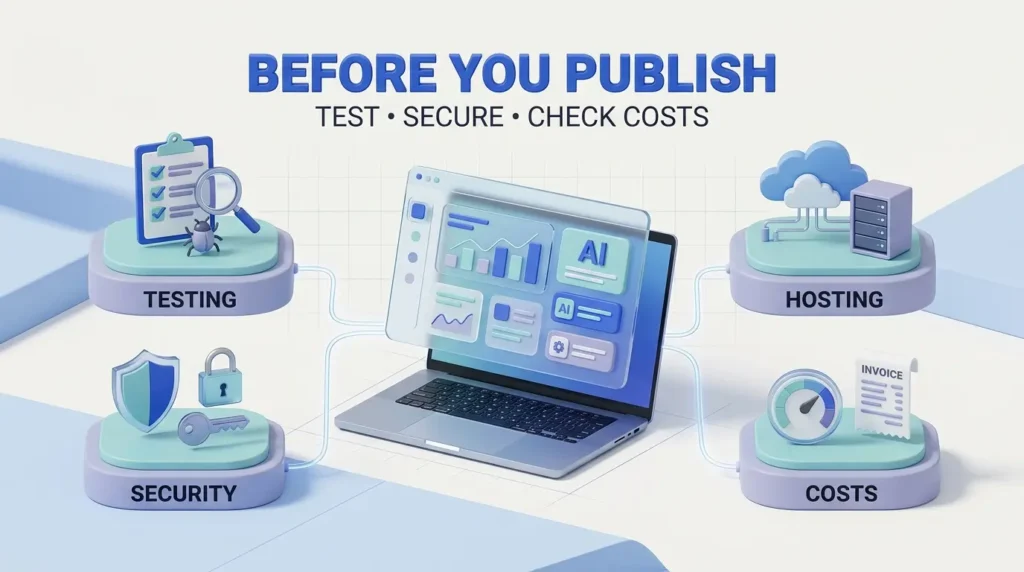
Google AI Studio provides free access for supported development activities, but not every model, API request, hosting configuration, or production workload is unlimited or free.
There are three separate costs to understand.
| Activity | What to know |
|---|---|
| Building and experimenting | AI Studio offers free access subject to supported models and usage limits |
| Using Gemini APIs | Free and paid usage tiers exist; limits and prices depend on the model and configuration |
| Publishing an app | Eligible accounts can use Google’s Starter Tier for up to two supported full-stack app deployments |
The distinction matters.
You might be able to build and preview an app without paying.
But a published app that uses paid APIs or additional cloud resources can still generate charges.
Google’s billing documentation explains how free and paid Gemini API tiers work.
Before enabling billing, check which project and API key your application uses.
Who qualifies for the no-credit-card Starter Tier?
Google says the Starter Tier is available to eligible accounts.
Accounts may be ineligible if they use certain Google Workspace subscriptions, have an active or previous paid Google Cloud billing account, or don’t meet Google’s account-activity requirements.
If you’re ineligible, standard deployment requires a Google Cloud project with billing enabled.
Free hosting is an eligibility-based option—not a promise that every reader can publish unlimited apps for free.
How to build an app with Google AI Studio: Step-by-step tutorial
Let’s build a small personal expense tracker.
It’s a good beginner project because it has a clear purpose, several useful features, and enough complexity to demonstrate how app building works.
We’ll begin with a browser-based app.
For this first version, we’ll ask AI Studio to keep data in the browser rather than immediately adding accounts or a database.
That reduces the number of things that can go wrong.
Step 1: Open Google AI Studio
Go to Google AI Studio.
Sign in with your Google account.
Look for the app-building experience, commonly identified as Build mode.
Google may adjust the interface, so use the current labels shown in your account.
Step 2: Describe the application you want
The quality of your initial instructions matters.
“Make me an expense tracker” is a reasonable starting point, but it leaves many decisions to the AI.
A stronger prompt specifies the purpose, features, design, storage approach, and expected behavior.
For this tutorial, we’ll use a more detailed starter prompt.
Step 3: Copy this beginner-friendly app prompt
Paste the following into AI Studio’s app-building prompt area.
Copy-and-paste starter prompt:
Build a responsive personal expense tracker web application called “Pocket Ledger.”
Purpose: Help one person record everyday expenses and understand monthly spending.
Features:
- Add an expense with date, description, category, and amount.
- Edit and delete existing expenses.
- Show total spending for the selected month.
- Display a simple category breakdown chart.
- Filter expenses by month and category.
- Export all transactions to a CSV file.
- Include a clear empty state when no transactions exist.
Design:
- Modern, clean, light-themed dashboard.
- Mobile-friendly layout.
- Accessible form labels and readable contrast.
- Clear buttons and helpful validation messages.
- Use a restrained blue and teal color palette.
Data:
- Store information locally in the browser for this first prototype.
- Do not add accounts, cloud databases, or paid external APIs.
- Explain that clearing browser storage may remove saved records.
Quality:
- Use consistent currency formatting.
- Reject invalid or negative expense amounts.
- Handle empty inputs gracefully.
- Ensure edit, delete, filters, totals, and CSV export work.
- Do not invent financial insights or sample spending data presented as real user records.
After generating the application, explain its structure and identify any features that still require testing.
This prompt is deliberately specific.
It tells the builder what the app should do, what it should look like, and what it should avoid.
Step 4: Generate and preview the app
Submit the prompt.
AI Studio will attempt to create the application.
Depending on the project and model, the process may take some time.
When a preview appears, don’t immediately assume everything works.
Look at the layout first.
Is the expense form visible?
Are the buttons understandable?
Does the page fit on a smaller screen?
Are charts and totals displayed clearly?
The first version is a starting point, not the final product.
Step 5: Test the core functions
Add three fictional expenses.
For example:
| Category | Description | Amount |
|---|---|---|
| Food | Lunch | $12 |
| Transport | Bus fare | $4 |
| Shopping | Notebook | $9 |
The total should be $25.
Now edit the lunch expense from $12 to $15.
The total should become $28.
Delete the notebook expense.
The total should become $19.
These are hypothetical test records, not actual app test results.
If the totals don’t update correctly, the app needs fixing.
Step 6: Ask AI Studio to correct problems
Don’t rewrite the entire project every time something goes wrong.
Describe the specific problem.
For example:
“The monthly total does not update after editing an expense. Investigate the calculation and state updates. Fix the issue without changing the current layout. Then explain the change.”
Specific instructions make it easier to evaluate whether the requested fix was applied.
Step 7: Improve the design
Once the core features work, refine the interface.
You could ask:
“Make the mobile layout easier to use. Keep the expense form visible, increase button tap targets, improve spacing, and ensure the category chart fits narrow screens. Do not remove existing functionality.”
AI Studio’s preview annotation tools can also help you identify visual areas that need attention.
Step 8: Check whether the data persists
Refresh the browser preview.
Do the saved expenses remain?
If the application uses local browser storage, records may persist within that browser environment.
However, local storage is not a substitute for a reliable cloud database or backup system.
Data may disappear when storage is cleared or when the application is used on another device.
For a personal prototype, that limitation may be acceptable.
For a business application, it often isn’t.

How to make your AI-generated app better
One of the biggest mistakes beginners make is treating the first generated version as finished.
A useful app needs several rounds of refinement.
Start with functionality
Before adding animations, make sure the important features work.
A beautiful expense tracker that calculates totals incorrectly isn’t useful.
Improve one thing at a time
If you ask the AI to redesign the entire application, add authentication, change the database, and fix five bugs in one prompt, it may be difficult to determine what caused a new problem.
Make smaller, controlled changes.
Ask for explanations
You don’t need to become an expert programmer overnight.
But you should understand the basic structure of your app.
Ask:
“Explain where expense records are stored, how totals are calculated, and what happens when the page refreshes.”
This makes it easier to identify limitations.
Save important versions
Export the project or connect a repository when appropriate.
If a later change breaks the application, you’ll want a previous working version.
Google AI Studio supports project export and GitHub workflows, according to its official documentation.
How to add user accounts and a database
Once the local expense tracker works, you might want to access your records from multiple devices.
That’s where authentication and cloud storage become relevant.
Google AI Studio supports Firebase integrations, including Firebase Authentication and Cloud Firestore.
You could request:
“Add Google sign-in and store each user’s expenses in Firestore. Each user must only be able to access their own records. Explain the data model, security rules, and deployment steps. Do not enable public access to private expense data.”
This is a more advanced task.
The generated application should not be trusted with real personal financial information until authentication, authorization, and data access have been properly reviewed.
Firebase’s security rules documentation explains how access controls protect stored data.
Why security rules matter
Suppose two users sign in to the same expense-tracking app.
User A should never be able to read User B’s expenses simply by changing a URL or record identifier.
Authentication identifies users.
Authorization determines which information they are permitted to access.
Both are essential.
AI-generated code can make mistakes in either area.
For anything beyond a personal experiment, test access controls carefully and seek experienced technical review where necessary.
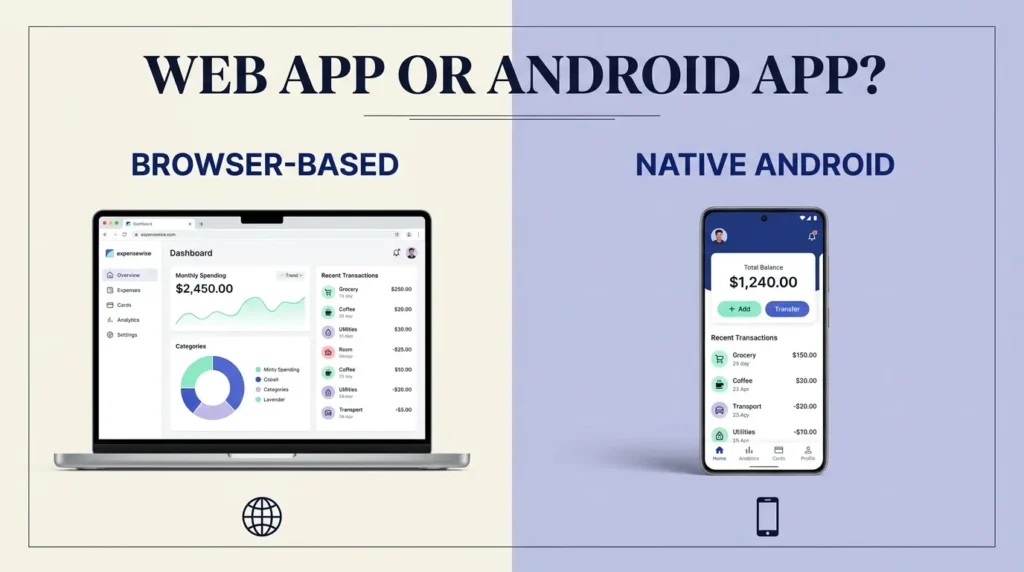
Can Google AI Studio build Android apps?
Yes.
Google announced native Android app generation in AI Studio in May 2026.
Its Android workflow uses Kotlin and Jetpack Compose, and it supports browser-based previews.
The Android Developers announcement also describes testing on physical devices and sending applications to Google Play’s internal testing track.
How to start an Android app
- Open Google AI Studio.
- Select the Android app-building option.
- Describe your application’s purpose and main screens.
- Generate the initial project.
- Preview it in the browser-based Android environment.
- Test navigation, forms, and important features.
- Export or continue development using supported Android tools.
- Use Google Play internal testing if you have the required developer account.
For example, you could request:
“Create a native Android habit tracker using Kotlin and Jetpack Compose. Include a home screen, habit creation, daily check-ins, weekly progress, and local data persistence. Use Material Design principles and support dark mode.”
Does this mean the app is ready for Google Play?
Not automatically.
Google Play internal testing is different from a public release.
A production release may require additional testing, store listing information, privacy disclosures, policy compliance, and developer account requirements.
Treat AI Studio as a development accelerator.. not a shortcut around app quality or platform rules.
How to publish your Google AI Studio app for free
Once you’ve built and tested a web app, you may want to share it with someone else.
Google’s Starter Tier provides a publishing option for eligible users.
According to Google’s official deployment guide, eligible accounts can publish up to two full-stack applications without creating a billing account.
Publishing steps
- Open your completed application in AI Studio Build mode.
- Select Publish.
- Choose the available Starter Tier workflow if your account qualifies.
- Follow the deployment instructions.
- Publish the application.
- Open the resulting URL and test the live version.
Google’s documentation identifies Publish → Get Started → Publish App as the Starter Tier workflow.
The published application runs through Google’s Cloud Run infrastructure.
Can you choose a custom app URL?
Google supports custom subdomains under ai.studio, subject to availability.
For example, a published app might use a memorable address such as:
That address is an illustrative example, not an actual deployed application.
What if the free deployment option isn’t available?
Your account may not meet Starter Tier eligibility requirements.
You may need a Google Cloud project with billing enabled.
Before proceeding, review the expected usage, resource limits, and potential charges.
Does free hosting mean free AI features?
No.
Hosting and AI model usage are separate concerns.
An app that makes Gemini API requests may be subject to model-specific quotas and pricing.
An app that uses other paid services can also incur costs.
Never assume that a free deployment option covers every connected service.
Google AI Studio vs Google Antigravity: Which should you use?
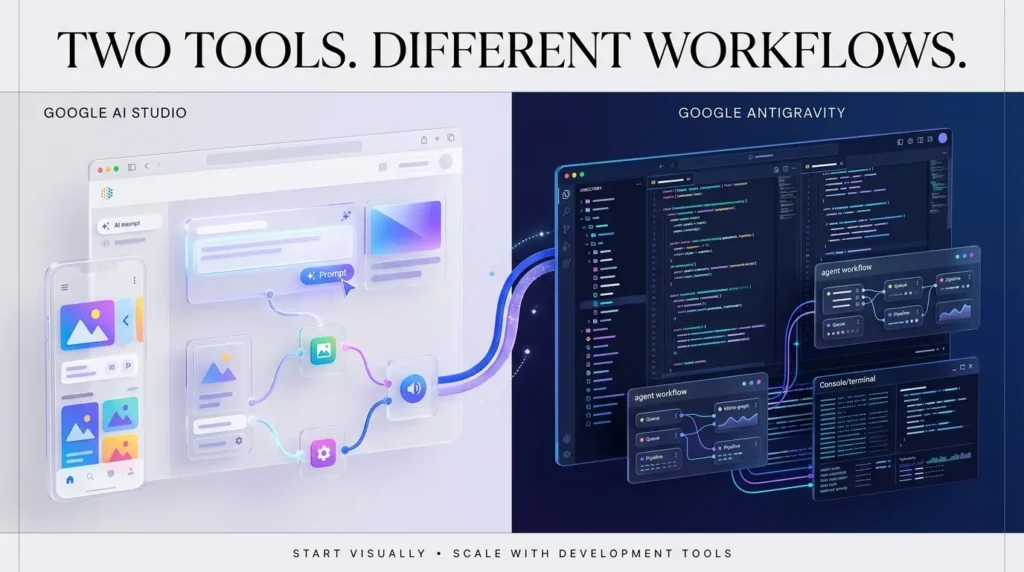
Google AI Studio and Antigravity are related, but they serve different development needs.
| Feature | Google AI Studio | Google Antigravity |
|---|---|---|
| Starting point | Prompt-driven app-building interface | Agent-oriented development environment |
| Best suited to | Beginners, prototypes, rapid app creation | More complex development workflows |
| Web app generation | Yes | Supports software development workflows |
| Native Android generation | Available in AI Studio | Can participate in broader Android development workflows |
| Project control | Visual preview, chat editing, code export | More extensive development and agent orchestration |
| Learning curve | Generally more approachable for beginners | Better suited to users comfortable managing technical projects |
These are practical distinctions, not benchmark rankings.
Google’s 2026 announcements describe exporting AI Studio projects to Antigravity for further development.
If you’re creating your first small application, AI Studio is the more approachable place to begin.
If the project grows into a complex product with multiple services, advanced testing, and collaborative engineering, a more comprehensive development environment may become useful.
Seven mistakes beginners should avoid
1. Starting with an enormous app idea
Don’t begin by asking AI Studio to build an entire social network, marketplace, payment system, and messaging platform.
Start with one useful feature.
Build it well.
Then expand.
2. Assuming generated code is automatically correct
AI-generated applications can contain logic errors, broken forms, security problems, and incomplete features.
Test important actions yourself.
3. Adding payments too early
Payment processing introduces security, financial, and compliance responsibilities.
Use a simpler prototype before integrating real payments.
4. Publishing private information
Don’t paste customer databases, passwords, confidential business files, or sensitive personal records into development prompts without understanding the service’s data-handling terms.
5. Ignoring mobile layouts
A dashboard that looks excellent on a large monitor may be unusable on a phone.
Test smaller screens before publishing.
6. Forgetting about ongoing costs
A prototype may be inexpensive.
A popular app can require more hosting capacity, database operations, and API usage.
Review billing settings and quotas before scaling.
7. Building without understanding the user
An application is only valuable if it solves a real problem.
Ask who will use it, what they need to accomplish, and what would make the experience simpler.
A smaller, reliable app often provides more value than a complicated one full of unfinished features.
What should you build first?
If you’re a complete beginner, choose a project with clear inputs and outputs.
A habit tracker is useful because you can test whether daily check-ins save correctly.
A task manager is useful because you can test adding, editing, completing, and deleting tasks.
An expense tracker is useful because you can verify calculations.
Avoid starting with a project that requires sensitive personal data or complex financial transactions.
The first goal is learning how to specify, generate, inspect, and improve an application.
Once you understand that process, you can explore more advanced ideas.
If you’re interested in the wider development process, TrendOutsider’s guide to AI in product development explores how teams can use AI to improve planning, development, and delivery.
For repeatable business processes, our generative AI workflows guide covers a broader range of automation approaches.
And if your goal is to automate existing business operations rather than create a new app, read our AI agents workflow automation guide.
Frequently asked questions
Can I build an app with Google AI Studio without coding?
Yes. You can begin by describing the app in natural language. However, technical knowledge becomes increasingly useful for debugging, security, integrations, and production deployment.
Is Google AI Studio free in 2026?
Google offers free access to supported AI Studio features and model usage, subject to limits. Paid API usage and cloud resources may incur charges.
Can I publish an app for free?
Eligible accounts can use Google’s Starter Tier to publish up to two supported full-stack applications without setting up a billing account. Not every account qualifies.
Can Google AI Studio build Android apps?
Yes. Google added native Android app generation using Kotlin and Jetpack Compose in 2026.
Does Google AI Studio create iPhone apps?
The officially documented native app workflow discussed here is for Android. Don’t assume it automatically provides an equivalent native iOS publishing workflow.
Can I connect my app to Firebase?
Yes. AI Studio supports Firebase integrations for services such as authentication and Firestore. Security configuration still requires review.
Can I export my code?
Yes. Google documents code export and GitHub-related workflows for continuing development outside AI Studio.
Do I own the app that AI Studio generates?
You can export and work with generated project code, but legal rights and obligations depend on applicable terms, third-party packages, assets, and licenses. Review those before commercial distribution.
Can I make money from an app built with Google AI Studio?
Potentially, if the app provides value and complies with relevant platform, payment, privacy, and legal requirements. AI-generated code does not guarantee users or revenue.
Is Google AI Studio better than hiring a developer?
For simple prototypes, it may reduce the amount of manual development required. For complex or security-sensitive products, professional engineering and review can still be essential.
Can I use Google AI Studio for business applications?
Yes, but production business applications need appropriate reliability, security, privacy, and operational controls.
What is the best first app for beginners?
A personal task manager, habit tracker, or expense tracker is a sensible starting point because the features are easy to describe and test.
Final verdict: Build small, test carefully, and improve what matters
Google AI Studio makes it easier to begin building software.
You can describe an idea, generate a working starting point, refine the interface, and explore publishing options without beginning from a blank code editor.
The addition of native Android development and integrated backend services makes the platform more capable than a basic website generator.
But the most important skill hasn’t changed.
You still need to understand the problem you’re solving.
You still need to test your application.
And you still need to protect the people who use it.
The best way to learn Google AI Studio is to build one small, useful app, understand how it works, and improve it until its important features are reliable.
Start with the expense tracker in this guide.
Make the totals work.
Make the interface comfortable.
Test it on a phone.
Then decide whether it deserves to become something bigger.
Sources and methodology
This article is based on official Google, Android Developers, Gemini API, and Firebase documentation available as of October 10, 2026. It is a guided example rather than an independently tested product review. All example app data and URLs are illustrative.
- Google — What’s new in Google AI Studio at I/O 2026
- Google AI for Developers — Build apps in Google AI Studio
- Android Developers — Build native Android apps in Google AI Studio
- Google AI for Developers — Deploying from Google AI Studio
- Google AI for Developers — Gemini API billing
- Google — Full-stack vibe coding with Google AI Studio
- Firebase — Get started with Firebase Security Rules
Recheck Google AI Studio’s interface, eligibility, and pricing before the scheduled November 2 publication.







Leave a Reply